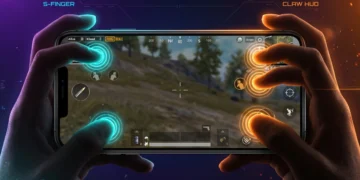


Looking for a PUBG Mobile 5 finger layout code or a simpler 3 finger layout code? A layout code is a share ID that imports someone else’s full HUD in a few seconds. It is a starting point. You still have to fit it to your screen size and your hands.
Every code below comes from community guides. None is a secret pro file, and we have not tested them in-game ourselves. Layout codes can stop working after a game update or once the uploader deletes their slot. Take a screenshot of your current HUD before you import anything.
Reality check: you do not need 5 fingers
Here is the honest truth: more fingers does not automatically mean a better player. Many strong players use three or four fingers. Five fingers only helps when each extra finger has a clear job, such as peeking, jumping or crouching, that you would otherwise do with your aiming thumb.
The learning curve is real. Our 4 finger claw guide cites estimates of 3-4 days for basics and 2-3 weeks for ranked comfort, and that is only for four fingers. Expect five or six fingers to take longer, and expect your results to drop at first.
- 2 thumbs: fine for casual play, but you cannot aim, move and shoot at the same time.
- 3 fingers: the sweet spot for most phone players. Easy to learn, with a big upgrade over thumbs.
- 4 fingers: the ranked standard once 3 fingers feels natural.
- 5-6 fingers: mostly for large phones and tablets. Do not start here.
How to import a layout code
- Screenshot your current HUD. Go to Settings → Customize Buttons → Customize.
- Open Layout Management with the search/cloud icon. To get a rollback code, share your current layout first, then pick a spare slot.
- Choose Search Method and paste the full code, hyphens included.
- Tap Search → Apply → Save. Applying overwrites whichever slot you selected.
- Use Quick Copy to send the layout from Classic TPP to FPP. Arena has its own layouts, so repeat the steps there.
A layout code changes button placement only. It does not touch Camera, ADS or Gyroscope sensitivity, which use a separate code. See our sensitivity code guide for how those work.
PUBG Mobile 3 finger layout code
To be straight with you: the August 2026 BitTopup layout guide we rely on covers 4 to 6 finger setups. We did not find a 3 finger PUBG Mobile global code we could stand behind, so we are not printing a random string from the internet.
The reliable way is to start from the most imported claw code and remove one finger’s job:
6974-6998-1946-2820-026: default ranked phone HUD, which the August 2026 BitTopup guide calls the most imported four-finger code of 2026.
After importing it, rearrange it for three fingers:
- Left thumb: movement joystick.
- Left index: the top-left fire button, set to 120-140% size.
- Right thumb: camera, with ADS, crouch and prone moved within easy thumb reach.
Then save the result to your own slot and share it. Now you have a 3 finger code that fits your phone.
PUBG Mobile 5 finger claw code
A 5 finger claw keeps the usual four-finger setup and adds a second right-hand finger, normally the middle or ring finger. That finger takes peek, jump or scope, so your right thumb never has to leave the camera.
6960-4887-1407-8797-709: tablet-style layout with an extra right-side finger, from the August 2026 BitTopup guide. It is meant for tablets and 6.7-inch+ / Pro Max phones. On a 6.3-inch phone the buttons stack on top of each other.
This is a community-shared code, not a verified pro export. Here is a typical 5 finger split:
- Left thumb: movement.
- Left index: fire, plus left peek.
- Right thumb: camera and aim.
- Right index: ADS, plus right peek.
- Right middle: jump, crouch or prone.
Searching for a BGMI 5 finger layout? The same finger split works there, but BGMI and PUBG Mobile global keep separate layout clouds, so a code from one will not import into the other.
6 finger pro layout
Six fingers adds the left middle finger as well, usually for scope or crouch. In practice it is a tablet setup. Most phones do not have room for six fingers without your hands blocking the screen.
We have not seen a separate 6 finger global code in our checked sources, so we are not inventing one. If you want to try six fingers on a tablet, start from the tablet code above and move scope or crouch to your left middle finger.
You will see 6 finger codes credited to pro players online. Be careful with those. A famous name attached to a code does not prove that player ever exported it.
Layout by phone size
The same code feels very different on a 6.1-inch phone and on an 11-inch tablet. Here is how to adjust.
Small phones (under 6.3 inches)
- Use 3 fingers, or 4 at most. On small screens, 5 finger layouts lead to accidental taps.
- Drop the fire button to 90-95% if it clips the screen edge.
- Leave about 15% of a button width of space between fire, peek and crouch.
Big phones (6.5-6.8 inches)
- 4 fingers is comfortable. Try 5 only after a few weeks on 4.
- Keep fire at 120-140%. On tall 19:9 and 20:9 screens, move the top row down to clear the notch or punch-hole.
- On curved-edge Samsung phones, pull fire and ADS slightly inward.
Tablets
- This is where 5 and 6 finger layouts make sense.
- Set fire to 130-150% and spacing to 20-25%, because your hands are further apart.
- Gyro aiming needs the whole device to tilt, so a heavy tablet suits touch aiming better.
Whatever the size, a layout cannot fix frame drops. If your phone stutters, fix PUBG Mobile lag first, because jittery frames will ruin the muscle memory you are trying to build.
Practice routine for a new layout
Commit to one layout for at least two weeks. If you switch codes after every bad match, your fingers never learn anything.
- Days 1-3: 15 minutes in Training Ground. Shoot dummies while strafing, using the new fire finger only.
- Days 4-7: add peek and crouch spam while you fire. Try a few TDM matches.
- Week 2: 30-45 minutes a day, mostly TDM, plus unranked Classic.
- Week 3+: go back to ranked. Only move a button if the same mis-tap keeps happening.
Your K/D will dip at first, bhai, and that is normal. If you are still fighting the layout after three weeks, go back down one finger. That is a smart choice, not a failure.
Sharing a layout in-game is free. Never pay for a “secret” code, because no layout gives auto headshots or zero recoil. For more free guides, see our gaming guides hub.
Frequently asked questions
Is 5 finger better than 4 finger?
Only on big screens, and only after you master 4 fingers. A fifth finger takes over jump, crouch or peek so your aiming thumb never leaves the camera. On phones under 6.5 inches it mostly causes accidental taps. Most players do better sticking with 3 or 4 fingers.
What is the best 3 finger claw code?
No single code works best on every phone, and our checked 2026 source does not list a dedicated 3 finger code. Import 6974-6998-1946-2820-026, put fire top-left for your left index finger and keep ADS and crouch near your right thumb, then save the result as your own code.
Why is my layout code not working?
Codes stop working when the uploader deletes or edits their slot, or when a game update rejects older IDs. Check that you pasted the full code with hyphens, and that you are in PUBG Mobile global rather than BGMI. If it still fails, the code is dead, so try another or build your own.
Can BGMI layout codes work in PUBG Mobile global?
No. BGMI and PUBG Mobile global use separate layout clouds, so a code from one will not import into the other. The finger split and button sizing advice still applies, so you can rebuild the same layout by hand.