- Latest
- Trending
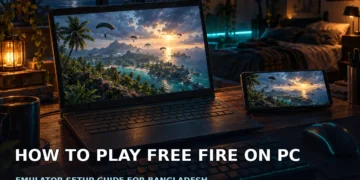
A bigger screen makes Free Fire easier to follow, and a mouse gives you more direct aim. Playing on a plugged-in PC also keeps your phone battery free for calls, messages and bKash.
An older laptop can still work if it meets your chosen route’s requirements. This guide covers how to play Free Fire on PC without chasing random installers, with separate advice for modest and genuinely underpowered machines.
Garena publishes no standalone PC client. BlueStacks’ official guide says Free Fire has no official PC version, while MEmu describes it as an Android/iOS game played on computers through Android emulators. That makes the software running the game crucial to your setup.
The distinction: Google has an official Google Play Games on PC listing for Free Fire MAX. Alternatively, install an Android emulator such as BlueStacks and get Free Fire through its Play Store. These are different routes, not a Garena Windows release.
Open the Free Fire MAX listing on Google Play Games on PC. Click Get started; the listing’s flow sends you an email for Google Play Games on PC. Follow that email’s instructions rather than downloading an unofficial PC package.
Google says Play Games on PC is available in more than 140 regions and syncs progress across devices. Availability varies by region: check what the store shows when you click Get started. Do not assume Bangladesh access simply because the listing opens in your browser.
The listing gives these minimum requirements:
Check these before starting a large download; a browsing laptop does not automatically qualify.
For the emulator path, use the official BlueStacks Free Fire page. Its published minimum lists Windows 7 or above, at least 4 GB RAM, 10 GB of free disk space and administrator access. The page also lists macOS 11+ and Intel, AMD or Apple Silicon CPUs; this walkthrough focuses on Windows.
Follow the BlueStacks installation guide: install BlueStacks 5, open it, sign in with your Google account to access the Play Store, install Free Fire, then launch it. Get the game through that store rather than a repacked APK advertised as a PC edition.
For its recommended setup, BlueStacks lists Windows 10, an Intel/AMD multi-core CPU with a single-thread benchmark score above 1000, 8 GB or more RAM, an SSD and a graphics controller benchmark score of 750 or above. Minimum requirements are an entry point, not a promise of smooth play on every laptop.
This table summarises Google’s listing, BlueStacks’ official requirements and the MEmu Free Fire guide. Despite the column heading, the recommended rows are recommendations, not minimums.
| Route | Minimum specs | Best for |
|---|---|---|
| Google Play Games on PC | Windows 10 v2004, SSD, 4 physical cores, 8 GB RAM; Intel UHD Graphics 630 or comparable | Players choosing the official MAX listing where available |
| BlueStacks 5 minimum | Windows 7+, 4 GB RAM, 10 GB disk; administrator access | Older PCs meeting the published entry requirements |
| BlueStacks recommended | Windows 10, 8 GB+ RAM, SSD; recommended CPU/GPU benchmarks also apply | Planning a setup beyond the minimum |
| MEmu recommended | i3-8100, GTX 1050 Ti 2GB, 8 GB RAM; Windows 10+ 64-bit | Comparing another documented emulator option |
MEmu additionally recommends OpenGL 4.x, virtualization enabled, at least 10 GB free on the install drive and 2 GB on the system drive.
BlueStacks says Free Fire comes with its team’s premade control scheme. Start there instead of rebuilding everything immediately. Open the Keymapping Tool with Ctrl + Shift + A, inspect the bindings and change anything that feels awkward.
According to BlueStacks, camera sensitivity is adjustable by right-clicking the “Aim, pan, and shoot” control inside that tool. Make small changes and test your aim before adjusting anything else.
BlueStacks also lists Shooting Mode among its features. If PUBG Mobile is your second game, our PUBG Mobile GameLoop setup guide and GameLoop vs BlueStacks comparison cover that side in more detail.
The BlueStacks guide says even a 2 GB RAM PC can run acceptably with reduced settings. However, its published minimum is 4 GB. Treat that lower-memory claim as a qualified possibility, not a performance guarantee for your hand-me-down PC.
Close browsers and unnecessary background apps first. In BlueStacks’ Performance tab, allocate CPU and RAM conservatively so Windows keeps headroom. Reduce in-game display settings, then check responsiveness before raising visual quality.
BlueStacks lists Eco Mode among its features, but do not assume it improves active-match performance, and avoid extra emulator instances while troubleshooting. On a load-shedding laptop, check the battery before queuing.
Use your own linked account, not a borrowed login. MEmu’s FAQ says account recovery goes through linked platforms such as Facebook, Google, Apple ID or VK. Keep access to that platform and never share OTPs with anyone offering setup help.
MEmu attributes bans almost always to third-party hacks, cheat engines or unauthorized modding tools. We could not verify a Garena emulator policy, so this is not a guarantee against bans. Avoid modified clients and scripts promising unfair advantages.
Deciding which game to install inside the emulator? Read our Free Fire vs Free Fire MAX comparison first. Remember that the Google Play Games listing discussed here is specifically for MAX.
Check regional availability and hardware requirements first, install from the official source, then sort out controls before worrying about visual quality.
You can use the official Google Play Games on PC listing for Free Fire MAX instead of installing a separate emulator such as BlueStacks. Click Get started and follow the email flow. Availability varies by region, so check what the store shows for you; Garena does not publish a standalone PC client.
Emulators are mainstream tools, and BlueStacks and MEmu officially document playing Free Fire through them. MEmu’s FAQ says bans are almost always tied to third-party hacks, cheat engines or unauthorized modding tools. We could not verify a Garena emulator policy, so we cannot promise that any setup is ban-proof. Stick to official downloads and avoid cheats.
BlueStacks’ official guide says it can run acceptably with reduced settings, but its published minimum is 4 GB RAM. Close background apps, use conservative CPU/RAM allocation in the Performance tab and lower in-game display settings. Leave resources for Windows and treat the guide’s claim as a possibility, not guaranteed performance.
Log in with the same linked account you use on mobile rather than starting a guest account. MEmu lists Facebook, Google, Apple ID and VK as linked platforms for recovery, and Google says Play Games on PC syncs progress across devices.





Comments 1