- Latest
- Trending
Seven VALORANT settings that are easy to miss, what each one actually does, and where Riot documented it. Every entry here is based on the patch notes or support article that introduced the setting, with the review date stated at the bottom.
Menu labels move between patches. Where a path is given it is the one Riot published at release, so check your own client if a menu looks different. Nothing here promises more FPS or better aim — these are preference and clarity settings, and we say so where Riot makes no performance claim.
For audio and connection settings see our guides on HRTF audio and network stats. For agents, see the VALORANT agent profiles guide.
Riot recommends considering Multithreaded Rendering on high-end VALORANT PCs. Its support guide says the setting can improve CPU performance and graphics quality on suitable hardware. That is a conditional recommendation, not a guarantee that turning it on will raise FPS on every PC.
Riot lists 8 GB RAM, 2 GB VRAM, and a CPU with at least 8 physical or virtual cores as the specifications for making the most of the feature. Because virtual cores count, Riot says many four-core CPUs may qualify. The option may only appear when the machine meets the game’s requirements for the feature.
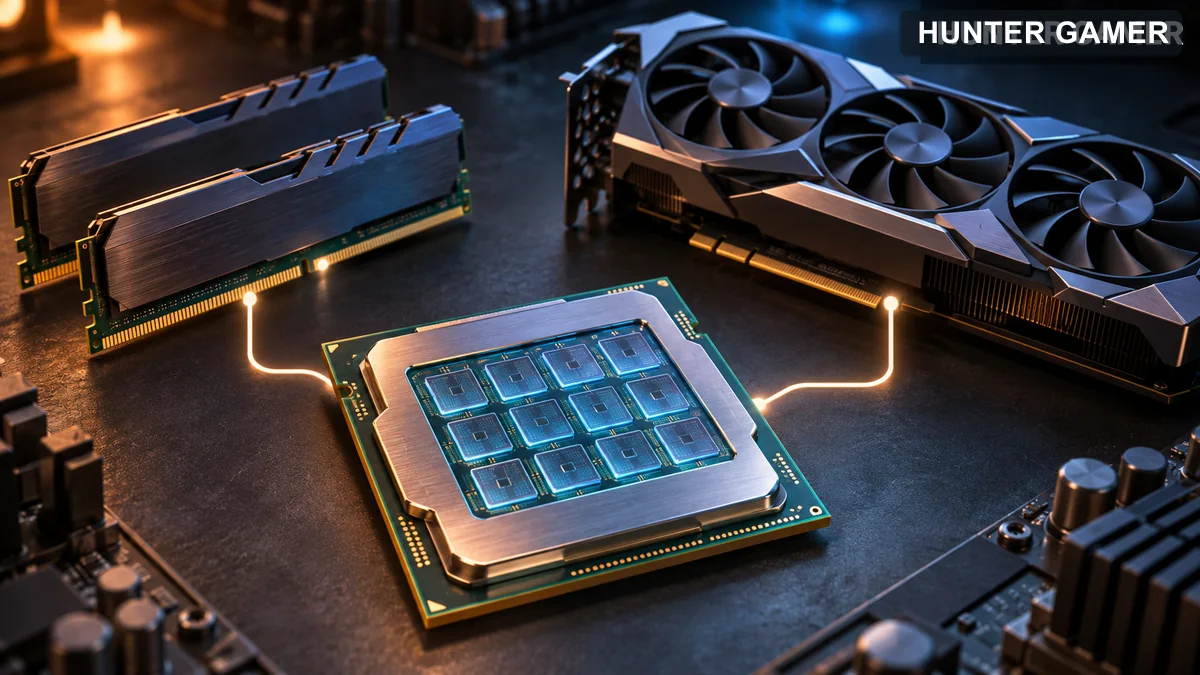
If your PC meets Riot’s listed specifications, On is worth trying. If you see worse stability or no useful improvement on your own machine, compare again with Off. Keep the same scene and other graphics settings during the comparison. Riot does not publish a universal FPS gain or a rule that every lower-spec device must switch it off.
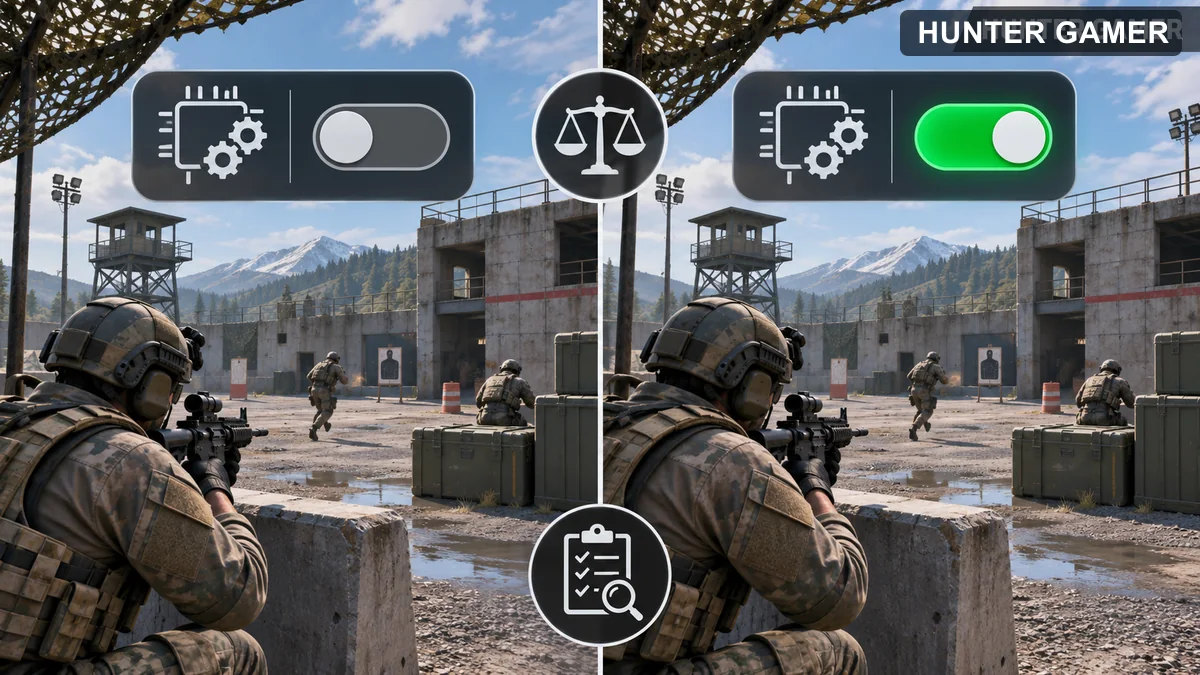
Hide Outlines and Fresnel is a VALORANT setting for hiding the color outline effect on Agents. Riot introduced it in Patch 6.06 and documented its original path as Settings → General → Other → Hide Outlines and Fresnel. The path comes from the 2023 release notes; check the labels in your current client if the menu has changed.
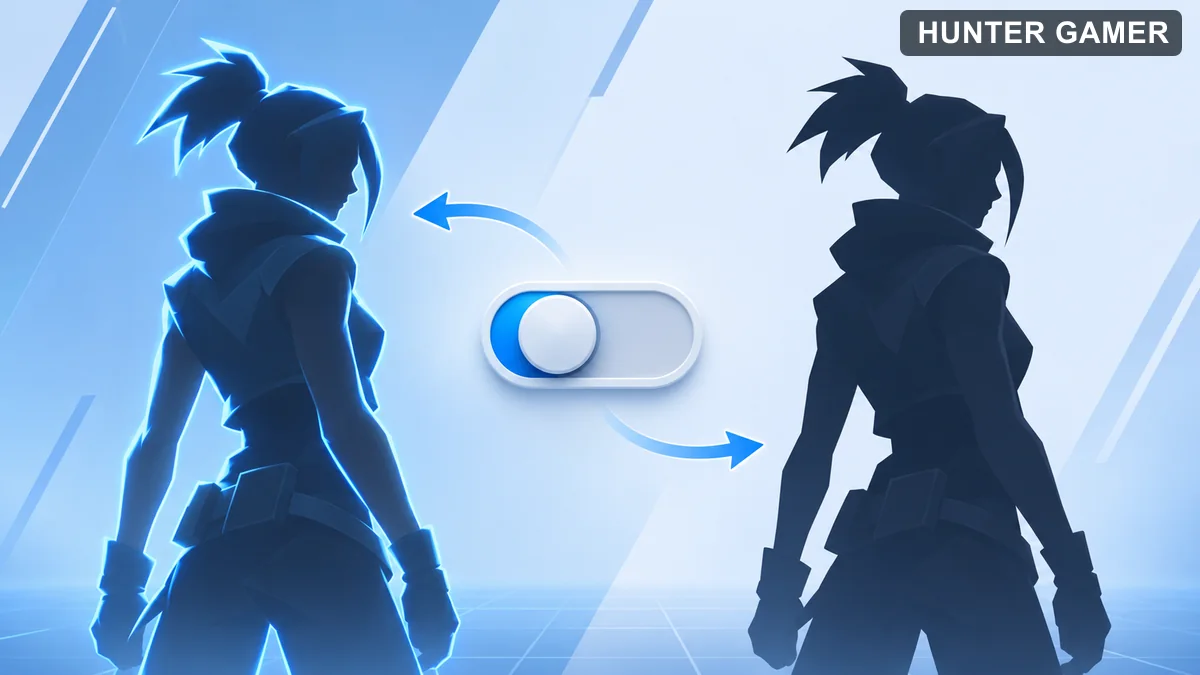
Riot calls fresnel “the color outline on Agents.” Its notes do not promise better aim, faster performance, or removal of every visual highlight in the game. Choose based on whether you prefer to see this particular Agent effect.
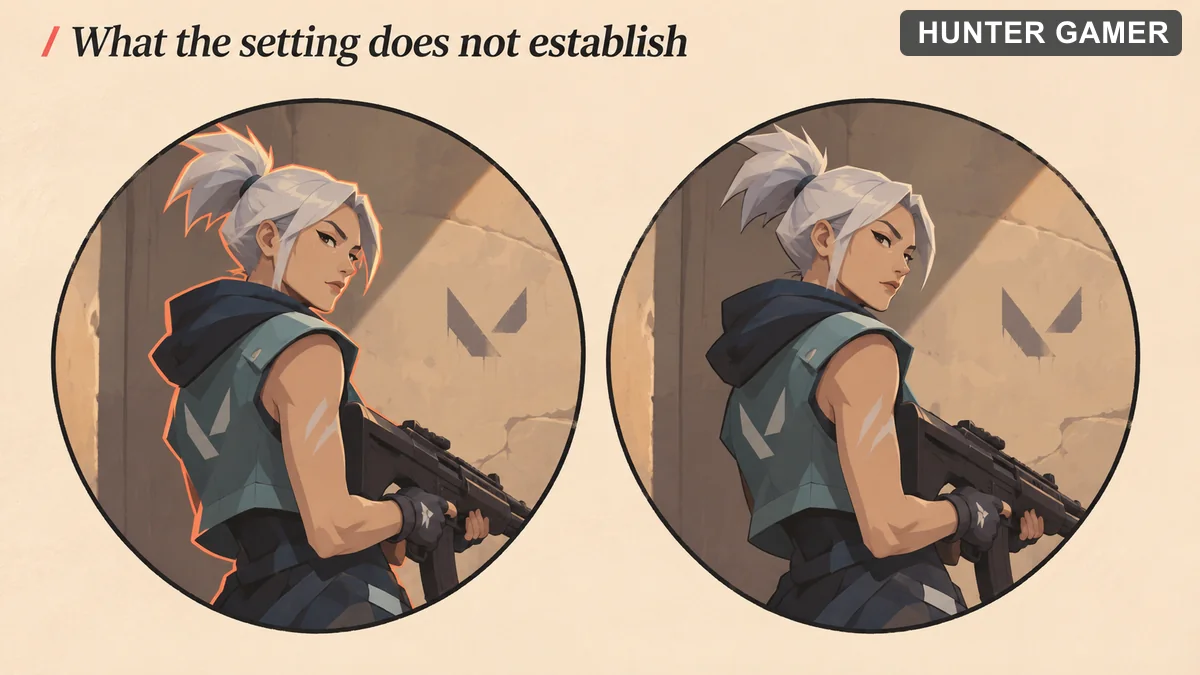
Patch 6.07 fixed a case where some outlines still appeared with the option enabled. If you are using an older build and the toggle seems ineffective, update the game before concluding that the setting does nothing.
VALORANT offers a left-handed first-person viewmodel. Riot’s Patch 1.11 notes say to open the game settings and change the viewmodel to Left-Handed. The notes do not give a more detailed tab path, so use the viewmodel label rather than assuming a tab name from an older screenshot.
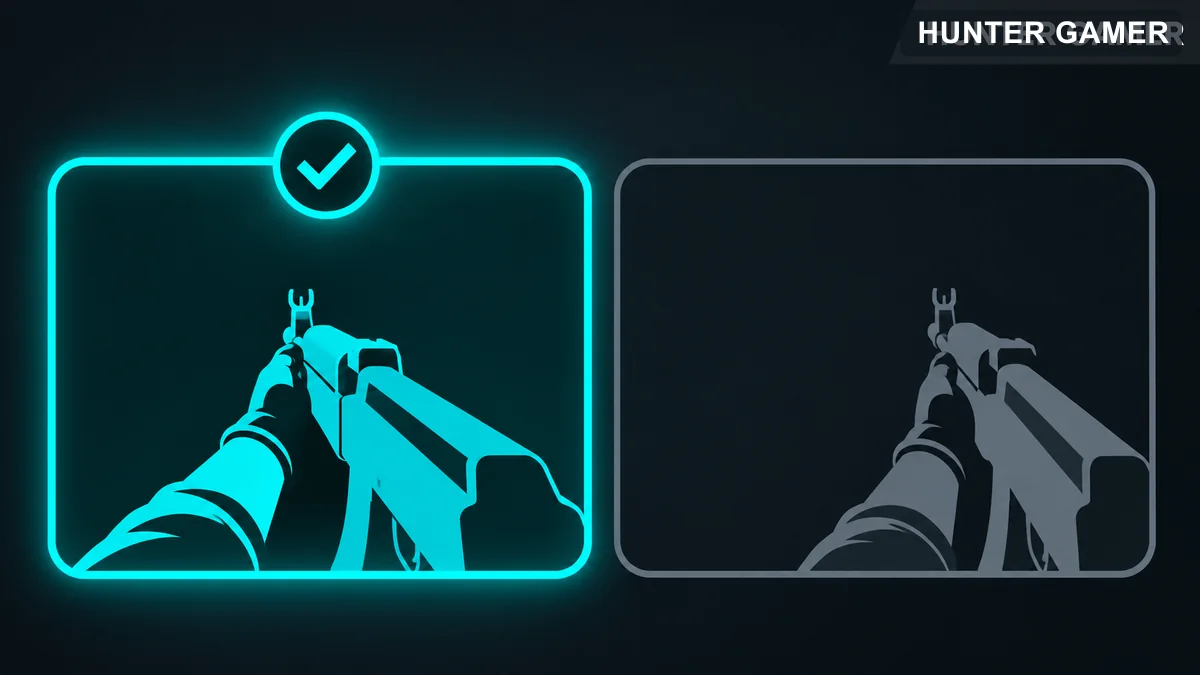
Riot says this selection also displays other players as left-handed while you spectate them. It is a presentation choice. Riot’s announcement does not claim increased accuracy or a damage advantage, so choose the side that you find easier to read.
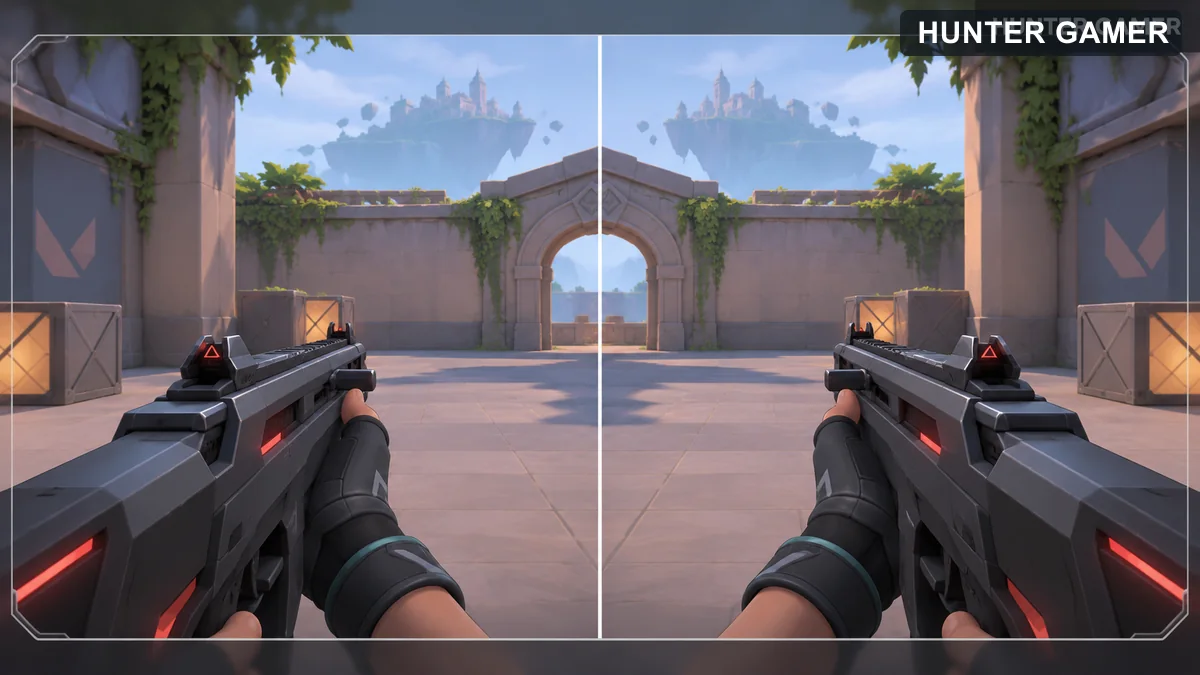
If you cannot find the viewmodel selection, check the labels shown by your installed client and its current patch notes. This guide follows the original release announcement and has not been tested against every later interface version.
VALORANT supports a separate keybind profile for each Agent. Riot introduced the feature in Patch 3.12. To use the documented controls, open Settings → Controls → Actions and create a profile for the Agent whose keys you want to change. The path comes from the December 2021 release notes; check the current client for later menu changes.
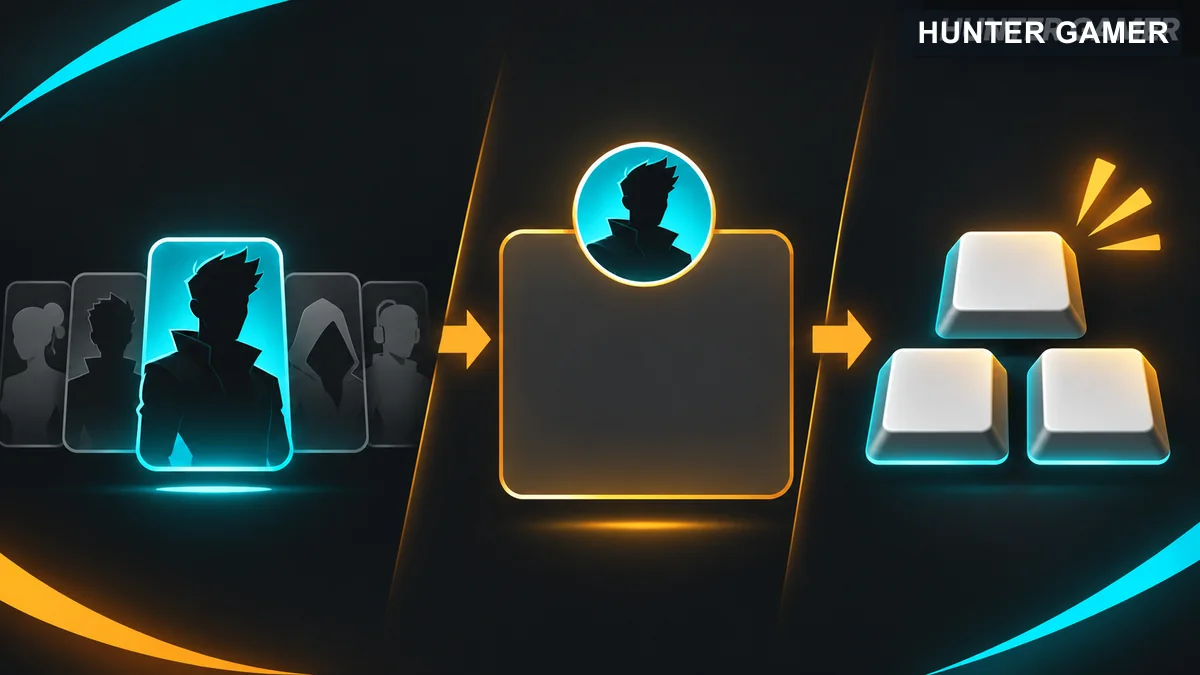
Riot says you can revert individual binding changes in an Agent profile. Reverting restores the binding to what it was when that profile was created, which may differ from your current global default. You can also delete an Agent profile. Check the displayed keys before deleting if you want a record of your custom layout.
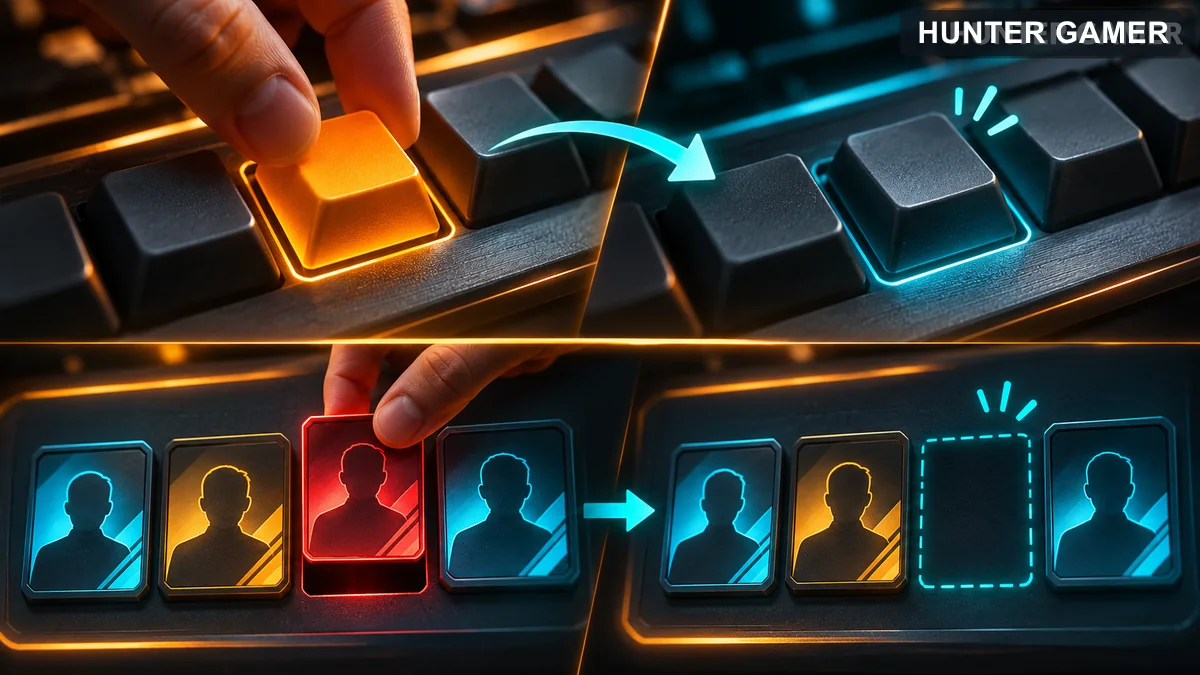
Begin with one Agent and change only the actions that actually conflict with your usual finger placement. Test those keys in the Practice Range before copying the layout to other profiles. This is a suggested workflow, not a Riot recommended key map.
After an ability or interaction, VALORANT may automatically equip a weapon unless you queued a specific equip input. Riot introduced Auto-Equip Prioritizes: Most Recent | Strongest in Patch 4.05 so players can choose how that automatic selection works. These are the documented rules from the 2022 patch; check the current client for any later changes.
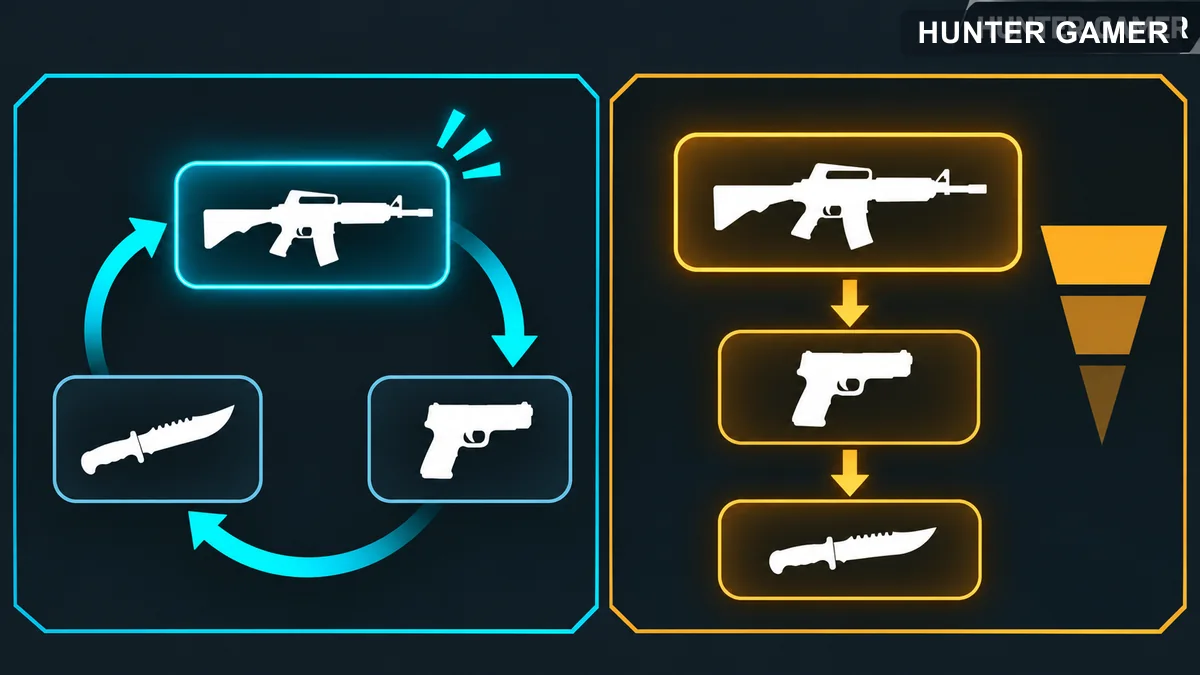
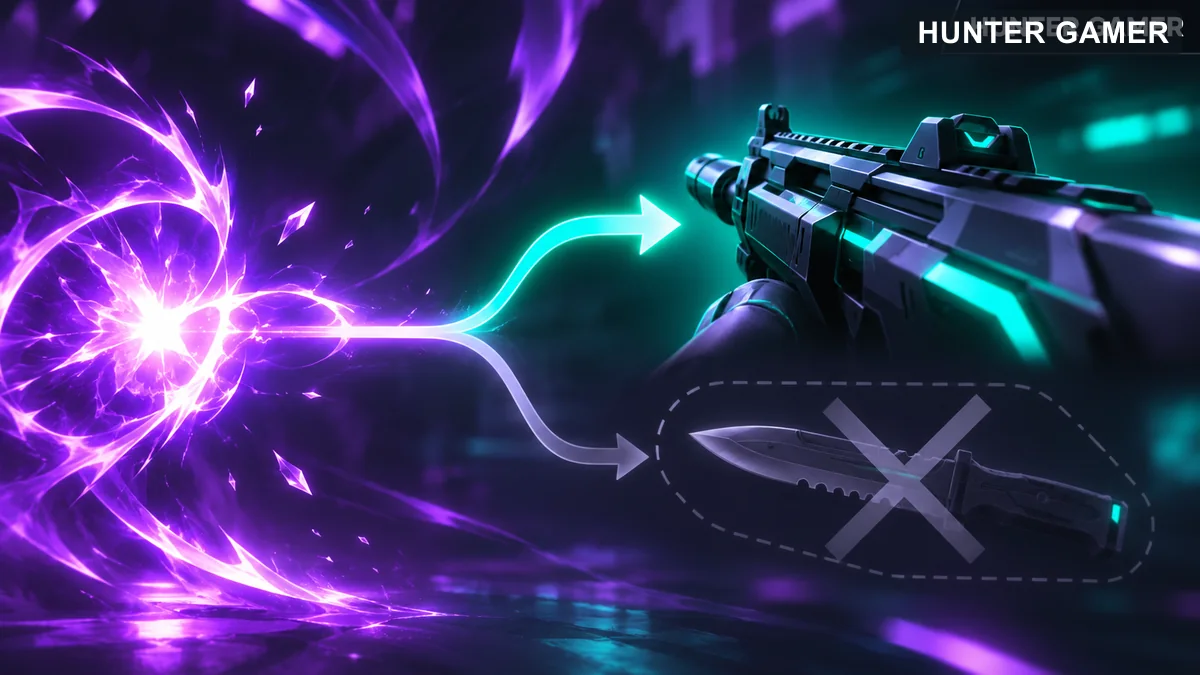
Patch 4.05 also added a separate Don’t Auto-Equip Melee setting. When finding the most recent weapon to equip, it skips melee, preventing the knife from returning after channeling or casting an ability. Riot says it does this without changing the other auto-equip behavior. If the unwanted outcome is specifically drawing your knife after an ability, check this option before changing your broader priority preference.
Choose Most Recent if you want automatic equipping to follow the weapon you last used. Try Strongest if you would rather favor the higher priority weapon group when several items are available. Riot notes that whether an ability weapon or primary is “stronger” can depend on the situation, so this is a preference to test, not a universal competitive setting.
A quick check in the Practice Range: equip melee, use an ability, and observe what comes back. Repeat with each priority choice and with Don’t Auto-Equip Melee enabled. Keep other settings unchanged so you can tell which option caused the difference. This is a suggested test, not a measurement from Riot.
Clutch Mute lets you silence team voice, party voice, or both during a VALORANT match. Riot documented the controls in Patch 4.11: open Settings (Esc) → Controls → Communication and assign keys for Party Voice Clutch Mute and Team Voice Clutch Mute. These are the release instructions from June 2022; menu labels may change in later versions.
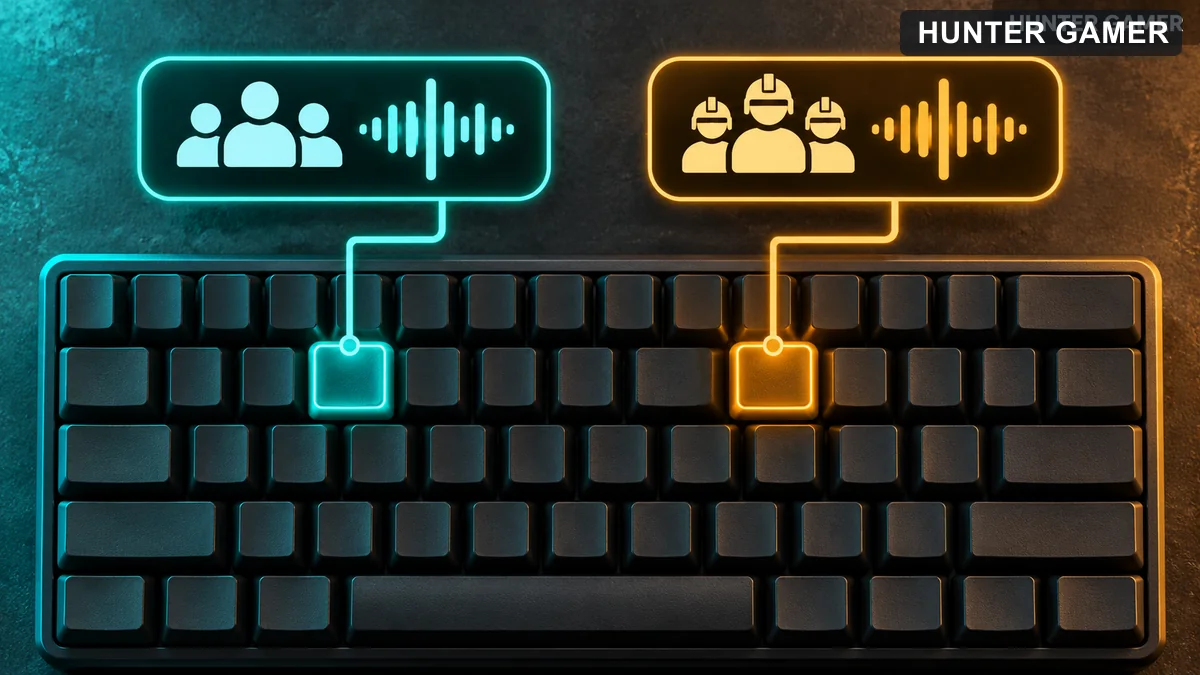
Party voice refers to people in your party; team voice refers to your wider team channel. If an important call is being drowned out, use the key for the channel you want to silence. Remember to toggle it back off when you are ready to hear that channel again. This feature is for voice chat; Riot’s announcement does not say it mutes game sounds.
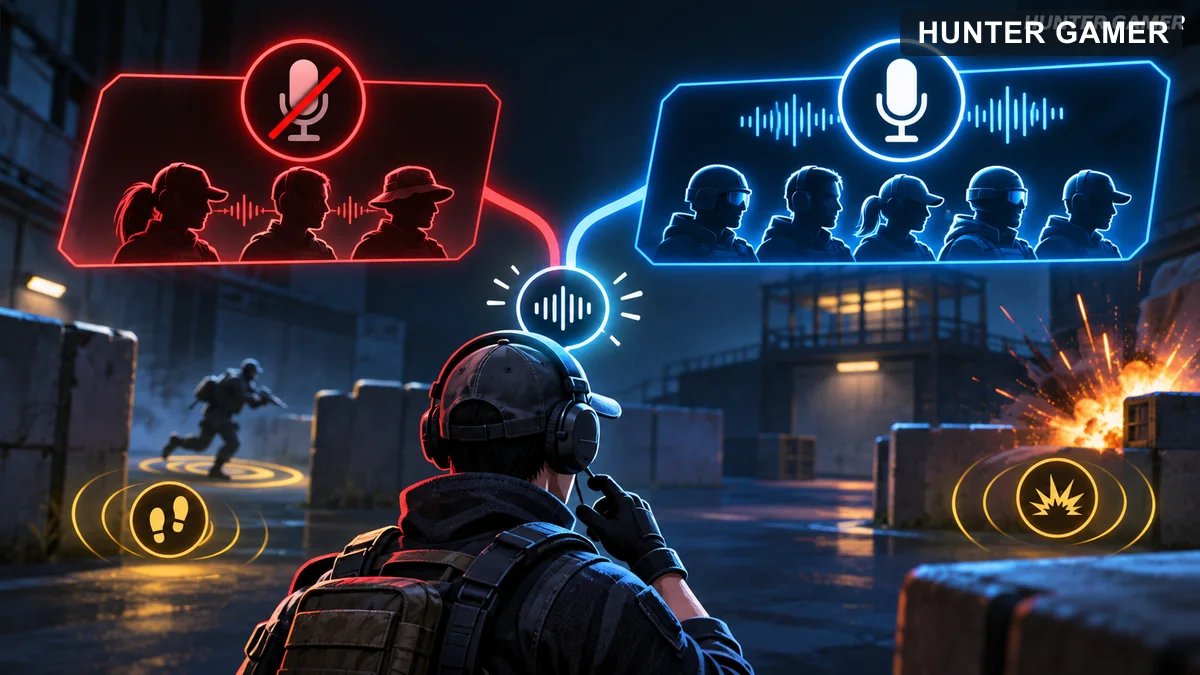
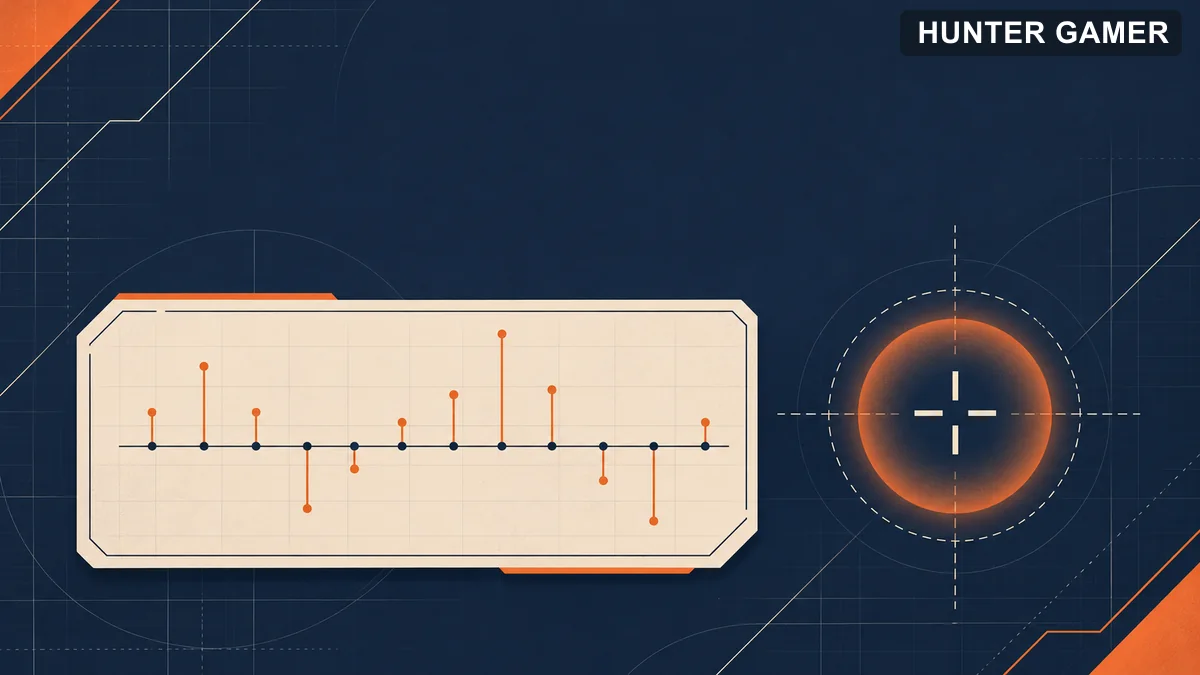
VALORANT’s Shooting Error performance graph shows shooting error values for recent shots. Riot added it in Patch 4.10 to help players diagnose their shooting after an engagement. It displays the same underlying information as the crosshair error settings, in a graph that can be reviewed afterward.
Use the graph to review whether recent shots had shooting error, then compare that observation with what you did during the fight. For example, if you suspect you fired while still moving, review the recent-shot graph after the engagement and repeat the situation in the Practice Range. The practice comparison is a suggested way to use the information; Riot does not provide a scoring threshold in the patch notes.
Riot identifies Shooting Error as a Performance graph. Search for that name among the game’s performance graph options. Patch 4.10 does not document a complete current menu path or the available display modes, so this article does not give an exact sequence of clicks for a 2026 client.
If you need the exact location of the control, inspect your current client’s performance graph menu or current Riot help before following an older screenshot. The feature’s original announcement is evidence of its purpose, not proof that every later interface label is unchanged.
All settings reviewed 31 October 2026 against the Riot documentation that introduced them: