• Latest
  • Trending
  • All
obs separate audio tracks for recording guide for Bangladesh gamers, updated October 2026

OBS Separate Audio Tracks: Record Your Mic and Game Audio for Stream Highlights

October 30, 2026
minecraft java narrator off guide for Bangladesh gamers, updated October 2026

How to Turn Off the Narrator in Minecraft Java Edition

October 30, 2026
fade valorant character profile guide for Bangladesh gamers, updated October 2026

Fade Valorant Character Profile: Role, Abilities, and Beginner Tips

October 30, 2026
obs microphone limiter settings guide for Bangladesh gamers, updated October 2026

OBS Microphone Limiter Settings: Control Loud Voice Peaks in Gaming Streams

October 30, 2026
breach valorant character profile guide for Bangladesh gamers, updated October 2026

Breach Valorant Character Profile: Role, Abilities and Teamplay Basics

October 29, 2026
skye valorant character profile guide for Bangladesh gamers, updated October 2026

Skye Valorant Character Profile: Role, Abilities and Teamplay Basics

October 29, 2026
hide desktop notifications on OBS stream guide for Bangladesh gamers, updated October 2026

How to Keep Desktop Notifications Off Your Gaming Stream in OBS

October 29, 2026
valorant network RTT jitter stats settings guide for Bangladesh gamers, updated October 2026

VALORANT Network Stats Settings: Check Ping Spikes and Connection Jitter

October 29, 2026
reyna valorant character profile guide for Bangladesh gamers, updated October 2026

Reyna in Valorant: Character Profile, Abilities and Duelist Role

October 29, 2026
obs audio ducking game sound while talking guide for Bangladesh gamers, updated October 2026

OBS Audio Ducking: Lower Game Sound Automatically While You Talk

October 29, 2026
valorant muted words list settings guide for Bangladesh gamers, updated October 2026

VALORANT Muted Words List: How to Filter Unwanted Text Chat

October 29, 2026
youtube gaming stream keyframe interval obs guide for Bangladesh gamers, updated October 2026

YouTube Gaming Stream Keyframe Interval in OBS: What to Set and Where

October 29, 2026
call of duty mobile review guide for Bangladesh gamers, updated October 2026

Call of Duty: Mobile Review: Multiplayer and Battle Royale for PUBG Players

October 28, 2026
  • About Our Gaming News Team Since 2019
  • Advertising & Sponsorship Opportunities
  • Contact Us for Gaming News & Support
Friday, October 30, 2026
  • Login
Hunter Gamer
  • Shop
  • Home
  • Mobile Games
    • PUBG
    • Fortnite
  • PC Games
  • Reviews
  • News
  • Insights
  • Streamers
    • Australia
    • Bangladesh
    • Canada
    • Hong Kong
    • India
    • Indonesia
    • Malaysia
    • Moroccan
    • Nepal
    • Singapore
    • Spain
    • Taiwan
    • Thailand
    • Türkiye
    • United Kingdom
    • United States
    • Vietnam
  • Online Games
    • Dex Ball

No products in the cart.

No Result
View All Result
Hunter Gamer
  • Shop
  • Home
  • Mobile Games
    • PUBG
    • Fortnite
  • PC Games
  • Reviews
  • News
  • Insights
  • Streamers
    • Australia
    • Bangladesh
    • Canada
    • Hong Kong
    • India
    • Indonesia
    • Malaysia
    • Moroccan
    • Nepal
    • Singapore
    • Spain
    • Taiwan
    • Thailand
    • Türkiye
    • United Kingdom
    • United States
    • Vietnam
  • Online Games
    • Dex Ball
No Result
View All Result
Hunter Gamer
No Result
View All Result

OBS Separate Audio Tracks: Record Your Mic and Game Audio for Stream Highlights

October 30, 2026
in News
Reading Time: 4 mins read
0 0
Home News
4
VIEWS
Share on FacebookShare on Twitter
obs separate audio tracks for recording guide for Bangladesh gamers, updated October 2026

OBS Separate Audio Tracks for Recording: Mic and Game Audio for Stream Highlights in 2026

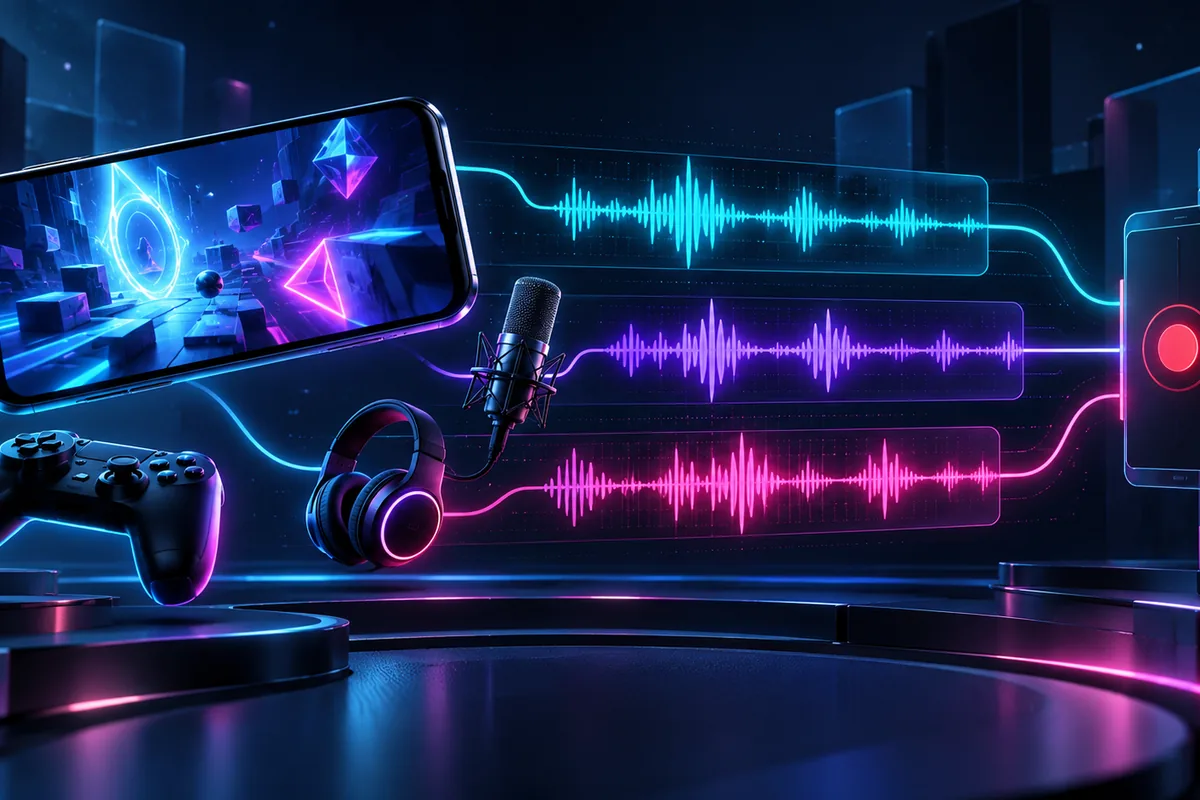
To use OBS separate audio tracks for recording, enable multiple recording tracks in Advanced Output Mode, then assign your microphone and game or desktop audio sources through Advanced Audio Properties. These settings are described as of October 2026.

Keep a combined playback track alongside the isolated sources. The OBS guide’s arrangement sends all audio sources to a shared track while also assigning sources to separate recording tracks. That gives you a combined version for ordinary playback and separate audio for editing stream highlights.

The important distinction is between assigning sources and enabling recording tracks. Advanced Audio Properties controls where each source goes; the Output settings control which tracks OBS records. Check both parts rather than stopping after the source assignments.

Enable the Recording Tracks in OBS

As of October 2026, use Advanced Output Mode to enable multiple recording audio tracks. In the Settings → Output window, enable the tracks you want included in the recording.

Think about the intended recording before changing the assignments: you want a combined playback track, an isolated microphone track, and an isolated game or desktop audio track. This follows the guide’s approach of keeping a shared mix while separating sources for editing.

Do not treat the enabled recording tracks as a substitute for source routing. The guide separately instructs you to assign audio sources to tracks and enable the tracks you want to record. Your recording setup should reflect the same arrangement in both places.

Assign Your Microphone and Game Audio

As of October 2026, open Advanced Audio Properties using the gear icon at the bottom left of the Audio Mixer dock. You can also access this window from the Edit menu. This is where the guide directs you to assign audio sources to recording tracks.

For the microphone and game or desktop audio sources, follow this routing pattern as of October 2026. The goal is to preserve a shared listening mix without putting every source into every isolated track.

  • Combined playback: Assign all intended audio sources to track 1, following the OBS guide’s example.
  • Isolated microphone: Assign the microphone to its own recording track while keeping it in the combined playback track.
  • Isolated game or desktop audio: Assign that source to a different recording track while also keeping it in the combined playback track.
  • Recording selection: Return to Settings → Output and enable the tracks used by your arrangement.

Review the assignments by source, not just by track. For the microphone, check its shared and isolated destinations. Then repeat that review for the game or desktop audio source. This checks the same shared-plus-separate arrangement described in the guide.

Separate Recording Tracks Versus a Listening Mix

Separate recording tracks serve the editing workflow, while a mixed audio track presents the sources together for listening. Keeping isolated recording audio is therefore a different goal from sending the live audience a combined audio mix.

For highlights, the useful distinction is between the combined version and the individual sources you intend to work with in an editor. The OBS guide specifically describes multiple-track recording as useful when editing after recording.

Ordinary video players play only one audio track at a time. They do not automatically combine the isolated microphone and game audio tracks during playback. This is why the guide recommends a shared track containing all sources when you are not processing every video through an editor before publishing.

If ordinary playback does not include every intended source, check the combined-track assignment rather than treating that playback alone as a complete test of the separate tracks. The player’s playback limitation makes the shared mix important.

Test the Tracks Before Your Gaming Session

Make a short test recording before recording a gaming session, then confirm that the intended sources appear on their assigned tracks. Review the separate tracks in your editing workflow, rather than relying only on ordinary video-player playback.

  • Check the combined track: Confirm that it includes both your microphone and the intended game or desktop audio.
  • Check the microphone track: Confirm that the intended microphone source appears separately.
  • Check the game audio track: Confirm that the intended game or desktop source appears separately.
  • Review the setup: Compare the source assignments in Advanced Audio Properties with the enabled recording tracks in Output settings, as of October 2026.

For more gaming information, explore our mobile games category and our informational top-up guides hub.

FAQ

Why does my video player not play all the separate audio together?
Standard video players play only one audio track at a time. Keep a combined playback track containing all intended sources for ordinary viewing.

Where do I assign the microphone to a separate track?
As of October 2026, use Advanced Audio Properties, accessible through the Audio Mixer gear icon or the Edit menu. Enable the intended recording tracks in Settings → Output as well.

Should I keep a combined track if I also record isolated audio?
The OBS guide’s example keeps all sources on a shared playback track alongside the separate sources. This supports ordinary playback while retaining separate audio for editing.

Previous Post

OBS Microphone Limiter Settings: Control Loud Voice Peaks in Gaming Streams

Next Post

Fade Valorant Character Profile: Role, Abilities, and Beginner Tips

Related Posts

minecraft java narrator off guide for Bangladesh gamers, updated October 2026
News

How to Turn Off the Narrator in Minecraft Java Edition

October 30, 2026
fade valorant character profile guide for Bangladesh gamers, updated October 2026
News

Fade Valorant Character Profile: Role, Abilities, and Beginner Tips

October 30, 2026
obs microphone limiter settings guide for Bangladesh gamers, updated October 2026
News

OBS Microphone Limiter Settings: Control Loud Voice Peaks in Gaming Streams

October 30, 2026
Next Post
fade valorant character profile guide for Bangladesh gamers, updated October 2026

Fade Valorant Character Profile: Role, Abilities, and Beginner Tips

minecraft java narrator off guide for Bangladesh gamers, updated October 2026

How to Turn Off the Narrator in Minecraft Java Edition

Categories

  • Mobile Games
  • News
  • PC Games
  • PUBG
  • Reviews
  • Xbox One

Topics

2024 PUBG tricks Best Fortnite Xp Maps Best Games Browser Cyberpunk Days Gone Fortnite Fortnite Xp Maps Gamer Lag fix Offer PMPL 2023 South Asia PUBG PUBG game performance PUBG mobile lag fix PUBG Mobile Redeem Codes 2023 X-Box Xp Maps
  • Top-Up Shop
  • About Us
  • Contact
  • Privacy Policy and Data Protection
  • Terms and Conditions of Website Use
  • Refund and Returns Policy for Digital Products
Call us: +880 1711 189127

Copyright © 2020 - 2026 Hunter Gamer · All Rights Reserved.

Welcome Back!

Login to your account below

Forgotten Password?

Retrieve your password

Please enter your username or email address to reset your password.

Log In
No Result
View All Result
  • Shop
  • Home
  • Mobile Games
    • PUBG
    • Fortnite
  • PC Games
  • Reviews
  • News
  • Insights
  • Streamers
    • Australia
    • Bangladesh
    • Canada
    • Hong Kong
    • India
    • Indonesia
    • Malaysia
    • Moroccan
    • Nepal
    • Singapore
    • Spain
    • Taiwan
    • Thailand
    • Türkiye
    • United Kingdom
    • United States
    • Vietnam
  • Online Games
    • Dex Ball

Copyright © 2020 - 2026 Hunter Gamer · All Rights Reserved.