- Latest
- Trending
To move your eFootball mobile account to a new phone, link the existing game data on your old phone first, then use Data Transfer on the new phone’s title screen. If you are switching between Android and iPhone, use a KONAMI ID rather than Google Play or Game Center.
Before switching operating systems, also check the coin-transfer answers in KONAMI’s official eFootball FAQ. Do not assume that restoring your team means every balance will look identical. Check the account and its balance before wiping or trading in your old phone.
This guide covers moving your own mobile account, not buying an account or moving a mobile team to a console. The instructions below come from KONAMI’s current support pages, checked on November 15, 2026; they are not a hands-on transfer test. Images are symbolic editorial illustrations, not game screenshots.
These are the routes in the official transfer instructions. KONAMI’s separate mobile account-restoration guidance also warns that a platform-account transfer cannot restore your account when you change operating systems.
For example, replacing one Android phone with another gives you a same-OS choice. Replacing that Android phone with an iPhone changes the route: prepare the KONAMI ID link while you can still open the original game. A normal phone backup is not a substitute for checking the game’s own Link Data status.
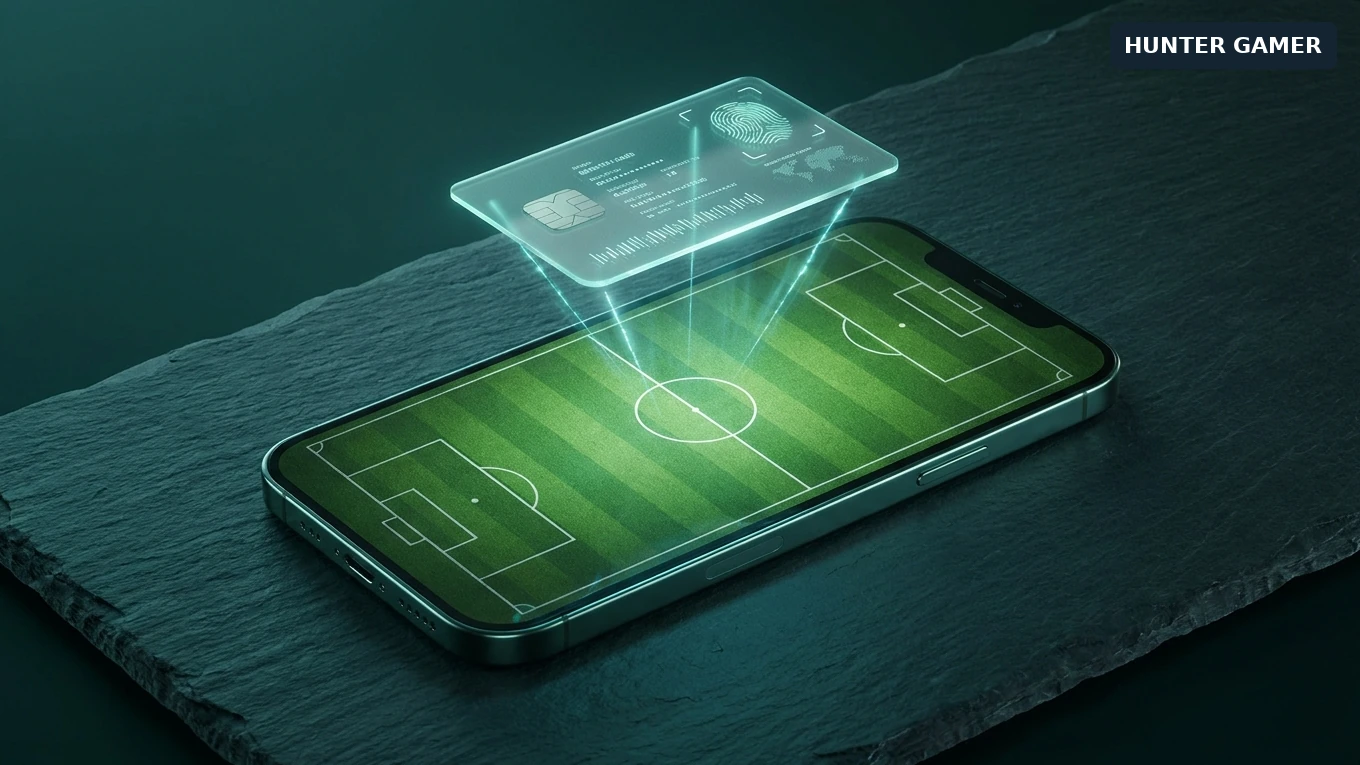
Open the existing team you want to keep. In KONAMI’s account-linking guide, the mobile route is Extras → Support → Link Data, followed by the KONAMI ID link option. Menu wording can differ slightly by device.
Our recommendation is to keep the old installation intact until you have confirmed the right account on the new phone. Linking, transferring and erasing a phone are separate actions; do not rush through all three because the new app has finished downloading.
Install the official eFootball app, open it and start from the title screen. For the KONAMI ID route, choose Data Transfer → Transfer from a KONAMI ID-linked account, then sign in to My KONAMI with the account linked to the old game. This is the new-device sequence documented in the official FAQ.
If you chose a same-OS platform-account route instead, select the matching Google Play-linked or Game Center-linked transfer option. Use the same platform account you linked on the old phone, not simply whichever account happens to be signed in on the new device.
Once the game opens, check your User ID and familiar team details. If it is not the account you expected, stop before making purchases or erasing the old phone. Recheck which login you used and follow official support rather than repeatedly trying unrelated accounts.
Before moving, note your balance on the old phone and read the official coin-transfer FAQ. Look for the question “When I transferred data to another OS, the number of eFootball™ Coins changed. Why did that happen?” It addresses a different issue from choosing the login that restores your team.
If the balance looks different, first confirm your User ID and whether you changed operating systems. Keep a record of the old and new balances for any support enquiry. Do not immediately buy replacement Coins or erase the old installation while you are still working out what happened. This guide does not guarantee the availability of a particular balance on another device.
This is a transfer guide, not a current price comparison. For the separate purchasing question, see our eFootball Coins buying guide for Bangladesh; check the dates and current checkout terms before relying on any listed offer.
If you already linked the game, use that linked transfer route. If you cannot access the KONAMI ID, KONAMI’s restoration page directs you to its KONAMI ID help or contact form.
If you never completed Link Data and the app or device is gone, the FAQ’s lost-device answer directs you to General Contact → Enquiry Form → I can’t restore my account using a data transfer from the title menu. Supply the information requested through that official form. This is a support enquiry, not a guarantee that the account can be recovered.
KONAMI also notes a monthly limit on transfer attempts. Its cited answer does not give a number, so this guide will not invent one. If you reach a limit or see an unfamiliar error, record its exact wording and use support instead of cycling through devices.
Yes. Link the mobile game data to a KONAMI ID and use that ID through Data Transfer on the new phone’s title screen. KONAMI’s FAQ describes that route for both directions. Its restoration guidance separately warns that Google Play is not the route for changing operating systems.
Check that you restored the intended account, note whether you switched between Android and iOS, and read KONAMI’s answer about Coins after an OS transfer. Keep the old balance record and use official support if your situation is unclear. Do not treat a different balance alone as a reason to make another purchase.
KONAMI’s restoration guidance says a previously linked account can be restored through the appropriate transfer route. Without that setup, use its account-restoration enquiry process; do not assume reinstalling alone will restore the old game.
On the old phone, open Extras → Support → Link Data, then choose the KONAMI ID option. This route appears in both KONAMI’s account-linking guide and its transfer FAQ. On the new phone, use Data Transfer from the title screen instead.