- Latest
- Trending
By Hunter Gamer.
If eFootball Mobile stutters or struggles to start a match, check Extras > Game Settings > Graphics. Player Graphics, Stadium Graphics and Frame Rate are separate controls. Change them deliberately rather than copying a single “best settings” preset from another phone.
First decide what you are trying to fix: uneven motion, delayed online actions, or missing commentary. They need different checks. Lower graphics will not solve every connection problem, and silent commentary can be an expected result of the lowest graphics setting.
This guide uses KONAMI’s support guidance checked on November 29, 2026. It is a troubleshooting workflow, not a device benchmark or a claim that we tested these settings on every phone. The illustrations are symbolic, not game screenshots.
The camera or players move unevenly: start with the graphics comparison below, especially if the problem also appears in Training or an AI match. That comparison helps isolate the issue; it does not prove which part of your phone is responsible.
Motion looks normal, but online actions arrive late: check the connection evidence as well. KONAMI’s online PvP guide distinguishes connection quality from device performance and explains the antenna indicator available in client-server matches.
Commentary and spectators disappeared after a settings change: check for Lowest (Prioritize Playability). KONAMI’s October 13 match-issues notice says that this setting disables in-match commentary and removes spectators. Re-downloading commentary is not the first thing to try in that situation.
Before changing anything, take a screenshot of your current Player Graphics, Stadium Graphics and Frame Rate values. Choose a repeatable Training activity or an AI match for comparison. Use a similar camera view and playing time so that a different scene is not mistaken for an improvement.
Open Extras > Game Settings > Graphics, the path listed in KONAMI’s mobile troubleshooting notice. Keep Frame Rate unchanged at first. Lower Stadium Graphics, confirm the selection, then repeat your chosen activity. If that helps enough, you have a useful stopping point without reducing everything.
If motion is still uneven, lower Player Graphics and repeat the same activity. Follow the presets actually available in your installed version. Older screenshots can be misleading: KONAMI’s v5.0.0 version notes explicitly record the removal of “Low” from Player Graphics. You do not need to find a missing preset to follow this guide.
Treat each change as a question: did this particular reduction make normal play more consistent? Look at camera movement, passes across the pitch and crowded play near the goal. Do not judge the result from the menu or one replay alone.
You can restore detail later, one control at a time. If the extra detail brings the interruptions back, return to the last acceptable combination. The goal is a setting you can keep using, not the lowest-looking picture or the highest possible preset.
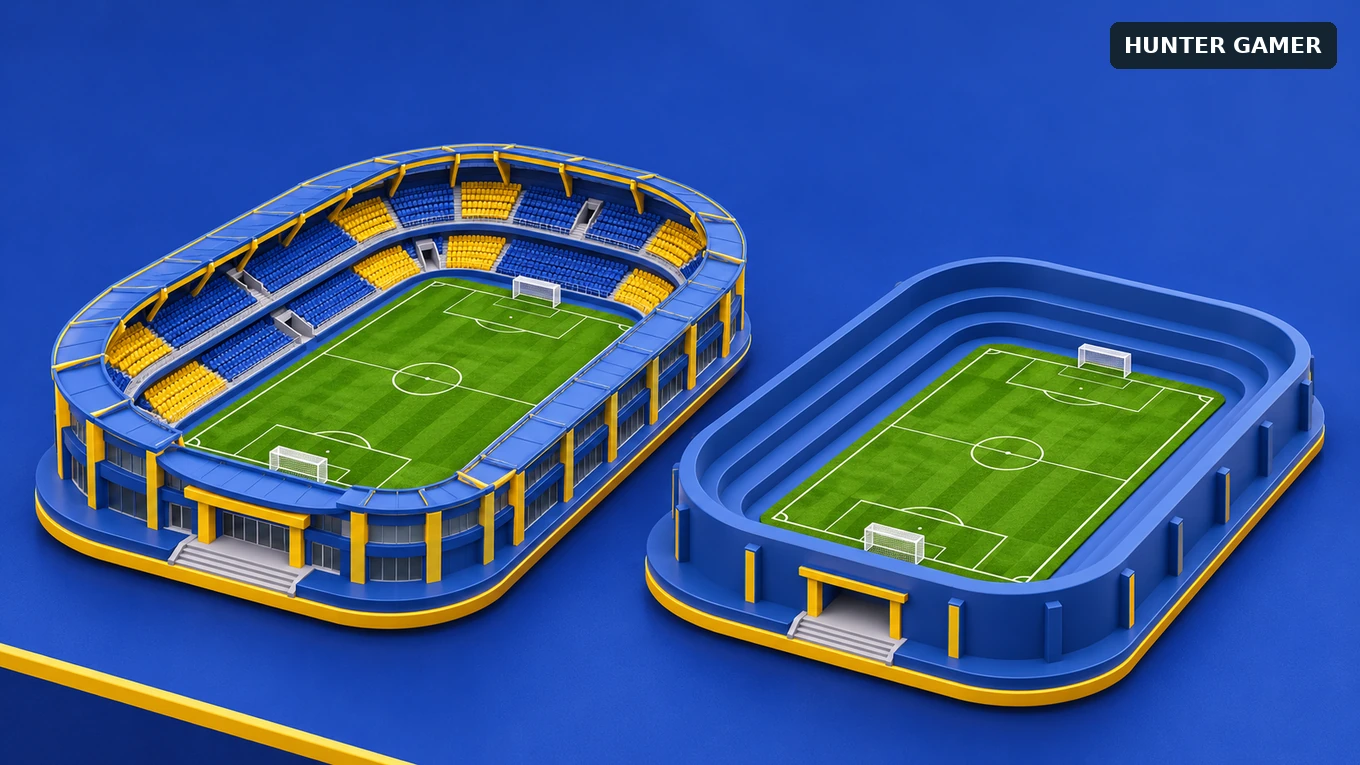
Once you have compared graphics quality, leave those values fixed and assess Frame Rate separately. If the game offers 60 FPS, try it and compare ordinary match play. If it remains uneven, compare 30 FPS under similar conditions. Appuals’ illustrated eFootball settings guide documents these options and the trade-off: 30 FPS can be a fallback when 60 is unstable, but it is less fluid.
Selecting 60 FPS is not a measurement that your phone is delivering 60 frames every second. Likewise, a phone advertised with a high-refresh-rate display does not establish the game’s actual rendering rate. Without a suitable measurement, describe the result as smoother, less interrupted or unchanged—not as a made-up FPS figure.
Keep other conditions consistent. For example, do not compare one attempt while recording the screen with another attempt without recording it. Avoid changing graphics, frame rate and connection together; an improvement would then tell you very little about which change helped.
Use this short record for each attempt: graphics values; frame-rate setting; activity played; where interruptions occurred; keep or revert. A useful note is “camera pans stopped hitching after lowering stadium detail.” “Better performance” is too vague to guide your next change. Stop the comparison if the phone displays a temperature warning.
In supported client-server matches, the antenna icon shows the quality of your connection to the game server. After the match, the network graph shows how that quality changed. KONAMI explains these indicators and notes that not every mode uses the same connection method. A missing graph in another mode does not mean the graphics menu is broken.
When the connection looks unstable, try the publisher’s practical checks: stay near the Wi-Fi access point without moving away, close background apps and pause large downloads or uploads on the same Wi-Fi network. Repeat the comparison before changing more graphics options. KONAMI cautions that these measures are not guaranteed fixes.
Keep the two observations separate. “AI matches stutter too” gives you a reason to investigate local rendering; “online matches show unstable connection quality” gives you a reason to investigate the network. Both can happen on the same phone. Neither observation justifies promising that a graphics preset will fix every delayed pass.
KONAMI says graphics settings are saved in your play data, so they may need review when you change devices. A restored team does not mean the old phone’s settings are a good fit for the new one. Recheck the three values instead of assuming the new hardware automatically selected them.
If you are still moving the account, use our eFootball Mobile data-transfer guide first. If the problem is that a paired gamepad does nothing in a particular menu or match, our eFootball Mobile controller guide covers those separate compatibility limits. Neither is a substitute for diagnosing match performance.
KONAMI says Lowest (Prioritize Playability) disables in-match commentary even when commentary data is already downloaded. Spectators are also removed. Check that setting before treating it as a missing audio download. Source: KONAMI’s match-issues notice.
Compare the options your game offers while keeping graphics quality unchanged. Keep 60 if play remains consistent; consider 30 if it reduces interruptions enough to justify less fluid motion. There is no universal result for every phone. Source: Appuals’ settings walkthrough.
KONAMI removed “Low” from Player Graphics in v5.0.0. Follow the presets shown in your current installation rather than an older screenshot. Source: KONAMI’s v5.0.0 notes.
Not necessarily. KONAMI provides separate connection-quality indicators and network checks for online PvP. Use those alongside the graphics comparison rather than assuming every delay is a rendering problem. Source: KONAMI’s online PvP guide.