• Latest
  • Trending
  • All
Illustration of two phones linked by orange sound waves on a tropical squad-game terrain model.

Free Fire Mic Not Working? Voice Chat Checklist (2026)

November 22, 2026
Symbolic illustration of an Android phone reviewing optional PUBG Mobile resource downloads

PUBG Mobile Storage: Remove Unused Resources (2026)

November 21, 2026
Illustration of gameplay frames looping beside a monitor, with one frame saved to a video tile.

OBS Replay Buffer Guide: Save Gaming Clips in 2026

November 21, 2026
Symbolic comparison of different local and cloud save copies on two computers

Steam Cloud Conflict: Which Save Should You Keep? (2026)

November 21, 2026
Symbolic control layout receiving a share code that repositions its buttons

Free Fire HUD Share Code: Import and Setup Guide (2026)

November 21, 2026
Illustration of a tilted phone above training targets with an amber rotation arrow.

PUBG Mobile Gyroscope Not Working? 2026 Checklist

November 17, 2026
A curved gaming monitor showing a colorful game scene with a glowing timeline bar below it, one segment highlighted in gold.

Steam Game Recording Guide 2026: Save and Export Clips

November 17, 2026
Two smartphones moving a glowing stream with a soccer ball from the old phone to the new phone under stadium lights.

eFootball Mobile Data Transfer: New Phone Guide (2026)

November 16, 2026
A smartphone wrapped in a glowing orange energy dome with a chain of light linking it to a floating shield emblem.

How to Bind a Free Fire Guest Account Safely in 2026

November 16, 2026
valorant settings guide hero

VALORANT Settings Guide: Seven Options Worth Checking

November 16, 2026
Five glowing crystal obelisks in different colors on a dark arena floor.

VALORANT Agent Profiles: All Abilities, Roles and How to Play Them

November 16, 2026
Blue and amber blocks labeled Version 4.7, November 12, and Flash, November 13, 2026.

PUBG Mobile 4.7 and Flash Release Dates: November 2026

November 16, 2026
Editorial illustration of a rugged metal supply capsule descending by parachute onto a rocky island as a storm and distant lightning gather over the sea.

Free Fire Storm Arena 2026: Free Rewards and What to Check

November 16, 2026
  • About Hunter Gamer
  • Advertising & Sponsorship Opportunities
  • Contact Us for Gaming News & Support
Sunday, November 22, 2026
  • Login
Hunter Gamer
  • Shop
  • Home
  • Mobile Games
    • PUBG
  • PC Games
  • Reviews
  • News
  • Insights
  • Streamers
    • Australia
    • Bangladesh
    • Canada
    • Hong Kong
    • India
    • Indonesia
    • Malaysia
    • Moroccan
    • Nepal
    • Singapore
    • Spain
    • Taiwan
    • Thailand
    • Türkiye
    • United Kingdom
    • United States
    • Vietnam
  • Online Games
    • Dex Ball

No products in the cart.

No Result
View All Result
Hunter Gamer
  • Shop
  • Home
  • Mobile Games
    • PUBG
  • PC Games
  • Reviews
  • News
  • Insights
  • Streamers
    • Australia
    • Bangladesh
    • Canada
    • Hong Kong
    • India
    • Indonesia
    • Malaysia
    • Moroccan
    • Nepal
    • Singapore
    • Spain
    • Taiwan
    • Thailand
    • Türkiye
    • United Kingdom
    • United States
    • Vietnam
  • Online Games
    • Dex Ball
No Result
View All Result
Hunter Gamer
No Result
View All Result
Home Mobile Games

Free Fire Mic Not Working? Voice Chat Checklist (2026)

by Hunter Gamer
November 22, 2026
in Mobile Games
Reading Time: 5 mins read
0 0
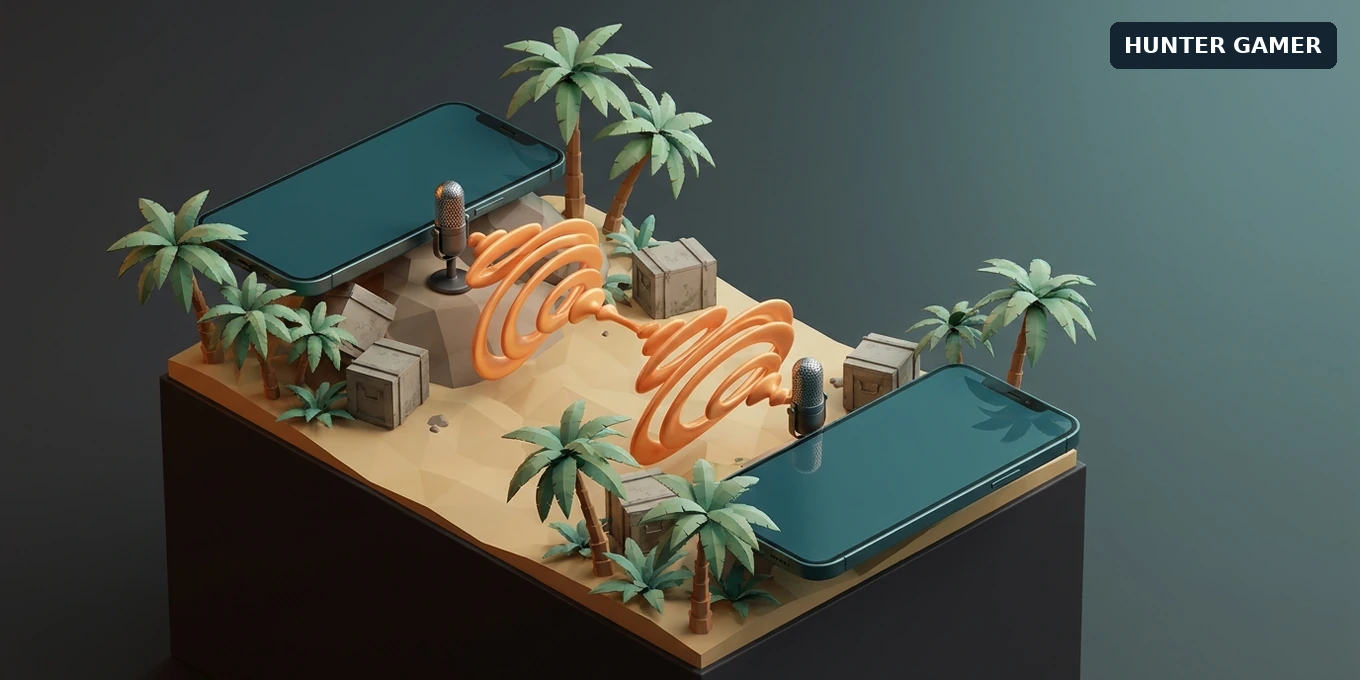
Illustration of two phones linked by orange sound waves on a tropical squad-game terrain model.

Symbolic editorial illustration of a two-player voice check; not a Free Fire screenshot or real map.

4
VIEWS
Share on FacebookShare on Twitter

If your Free Fire squad cannot hear you, check both the game’s voice controls and your phone’s microphone permission. Hearing gunfire or teammates does not prove that your microphone is sending sound. Start with those two checks, then test without a headset before changing anything more.

This guide follows Garena, Google and Apple support guidance. It adds a simple two-player test to help you narrow down the problem. It is not a report of a current Free Fire outage or a promise that one setting will fix every phone.

First, separate speaking from listening

Ask one friend to join you for a voice check before you queue for an important match. Use Duo or Squad: Garena’s voice-chat guide recommends these modes and notes that Solo may not require active voice chat.

  1. Ask your friend to say a short sentence. Can you hear it?
  2. Say a different sentence and ask your friend to repeat it back. Can they hear you?
  3. Write down which direction failed. Change only one setting or connection, then repeat both checks.

If you hear your friend but they cannot hear you, begin with your mic icon, microphone permission and input device. If they hear you but you cannot hear them, begin with the listening controls and your audio output. If neither direction works, check both players’ voice settings and channels before blaming either phone.

This is a way to choose your next check, not a diagnosis. A failed test with one friend does not establish that the game’s voice service is down.

Check Free Fire’s voice settings and channel

Garena lists Settings → Audio as the starting point. Enable Voice Chat and Microphone, select the intended voice channel, and check that the microphone icon is not muted during the match. The guide names All and Team; use the channel intended for your group and check what your current game version offers.

Do not treat the phone’s media-volume buttons as a substitute for these controls. You are checking whether voice chat is enabled, whether you are sending sound, and whether the group is using the intended channel. Those are different questions from whether game effects are loud enough.

If you recently rearranged your controls, locate the voice controls again rather than changing your whole layout. Our Free Fire HUD share-code guide covers layout imports; importing another HUD is not a microphone-permission fix.

Allow the microphone on your phone

Android: check app permission and the privacy switch

Open Settings → Apps → Free Fire → Permissions → Microphone. Choose Allow only while using the app, or the equivalent permission offered by your phone. If the app is not visible immediately, open the full app list. Make sure you are changing the entry for the game you actually launch.

There can also be a device-wide Microphone access control. Google’s documented route is Security & privacy → Privacy → Privacy controls. Check that access is enabled. Menu names and availability vary by device; search Settings for “microphone” if the route differs.

Google’s app-permission guide explains these separate controls. You do not need to grant unrelated permissions or disable your phone’s security protections for this check.

iPhone: check the app in Microphone settings

Open Settings → Privacy & Security → Microphone and enable Free Fire. After changing permission, close and reopen the game, as Garena recommends, then repeat the two-person voice check.

If the app is absent from that list, or permission is already enabled and the problem persists, Apple recommends contacting the app developer. Do not assume a missing switch means your microphone is physically broken.
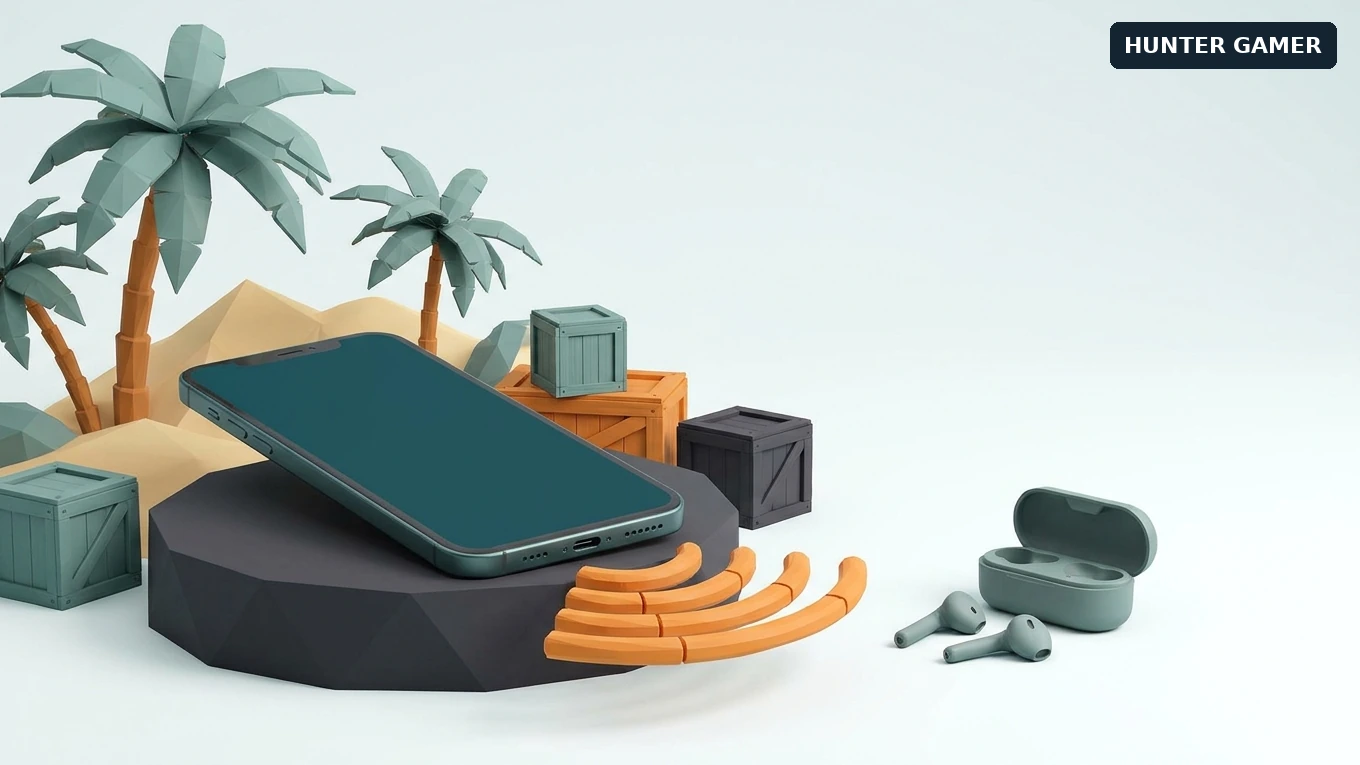
Test the phone mic before blaming the headset

Illustration of a phone with orange sound-wave arcs beside separate earbuds and a tropical terrain model.
Symbolic editorial illustration of testing the phone mic separately from earbuds; not a Free Fire screenshot.

Disconnect Bluetooth earbuds and any wired audio accessory. Reopen Free Fire and repeat the same voice check with the same friend, using the phone’s built-in microphone. This follows Garena’s accessory-isolation advice.

If voice works without the accessory, you have narrowed the problem to the accessory setup or its interaction with the phone and game. That result alone does not prove the earbuds are defective. Reconnect them and repeat the test before deciding what to replace.

On iPhone, Apple also suggests recording and playing back a Voice Memo when checking microphone problems. A clear recording is useful evidence, but it does not test Free Fire’s permissions, channel or network connection. Close the recorder before returning to the game.

Try one connection change, then collect useful evidence

Garena advises closing other apps that may use the microphone, keeping the game and phone software up to date, and comparing Wi-Fi with mobile data. If you try another connection, do it between matches and account for any mobile-data charges. Keep the same friend and audio setup so you are not changing several things at once.

When the issue continues, prepare a short support note:

  • Your phone model, operating-system version and game version.
  • Whether you cannot speak, cannot hear, or both.
  • Whether the phone mic works with accessories disconnected.
  • Whether the result changes between Wi-Fi and mobile data.
  • The exact message shown, when it occurred, and which checks you completed.

Keep passwords and login codes out of that note. This checklist does not require clearing game data, reinstalling, buying a “mic fixer,” or using an unofficial game client. If you also play PUBG Mobile, use our separate PUBG Mobile voice-chat guide rather than assuming its game menus match Free Fire.

Frequently Asked Questions

Why is my Free Fire mic still off after allowing permission?

Why is my Free Fire mic still off after allowing permission?

Phone permission is only one check. Garena also lists voice settings, the selected channel, the in-match mute icon, accessories, other apps and the connection. Reopen the game after changing permission, then test one item at a time.

Can Android block the mic even when Free Fire has permission?

Can Android block the mic even when Free Fire has permission?

Yes. Google documents a separate device-wide Microphone access control. Check it as well as the individual app permission. The route and available controls depend on your phone.

Should I buy new earbuds if Free Fire voice chat fails?

Should I buy new earbuds if Free Fire voice chat fails?

Not based on that symptom alone. First follow Garena’s recommendation to disconnect external devices and test the phone mic. Compare the result after reconnecting the earbuds; the comparison helps narrow the issue without an immediate purchase.

What if Free Fire is missing from iPhone Microphone settings?

What if Free Fire is missing from iPhone Microphone settings?

Apple’s guidance is to contact the app developer if an app is not listed, or if it has microphone permission but still does not work. Report the missing entry and your device details rather than assuming an account penalty or hardware fault.

Images are symbolic editorial illustrations, not screenshots or recreations of Free Fire maps.

Published by

Hunter Gamer

Hunter Gamer has covered games, esports, and streamers for readers in Bangladesh and beyond since 2019. The site publishes gaming news and explainers, practical settings and troubleshooting guides for mobile and PC players, Bangladesh buying information for gaming hardware and digital products, and profiles of creators alongside their official channels.

Articles are built on official game, platform, and product information where it is available, and sources are linked when a claim needs attribution. Because prices, release dates, and game settings change, each article carries a review date and readers are asked to check the linked source before buying anything or changing an account setting. Where something cannot be verified, the article says so rather than guessing. Articles are revised when an error is found or when a change makes an older guide misleading — corrections and news tips are welcome through the contact page.

About Hunter GamerSpotted an error? Tell us

Tags: Gamer
Previous Post

PUBG Mobile Storage: Remove Unused Resources (2026)

Related Posts

Symbolic control layout receiving a share code that repositions its buttons
Mobile Games

Free Fire HUD Share Code: Import and Setup Guide (2026)

November 21, 2026
Illustration of a tilted phone above training targets with an amber rotation arrow.
Mobile Games

PUBG Mobile Gyroscope Not Working? 2026 Checklist

November 17, 2026
Two smartphones moving a glowing stream with a soccer ball from the old phone to the new phone under stadium lights.
Mobile Games

eFootball Mobile Data Transfer: New Phone Guide (2026)

November 16, 2026

Categories

  • Mobile Games
  • News
  • PC Games
  • PUBG
  • Reviews

Topics

2024 PUBG tricks Best Fortnite Xp Maps Fortnite Fortnite Xp Maps Gamer Lag fix PMPL 2023 South Asia PUBG PUBG game performance PUBG mobile lag fix Xp Maps
  • Top-Up Shop
  • About Us
  • Contact
  • Privacy Policy and Data Protection
  • Terms and Conditions of Website Use
  • Refund and Returns Policy for Digital Products
Call us: +880 1711 189127

Copyright © 2020 - 2026 Hunter Gamer · All Rights Reserved.

Welcome Back!

Login to your account below

Forgotten Password?

Retrieve your password

Please enter your username or email address to reset your password.

Log In
No Result
View All Result
  • Shop
  • Home
  • Mobile Games
    • PUBG
  • PC Games
  • Reviews
  • News
  • Insights
  • Streamers
    • Australia
    • Bangladesh
    • Canada
    • Hong Kong
    • India
    • Indonesia
    • Malaysia
    • Moroccan
    • Nepal
    • Singapore
    • Spain
    • Taiwan
    • Thailand
    • Türkiye
    • United Kingdom
    • United States
    • Vietnam
  • Online Games
    • Dex Ball

Copyright © 2020 - 2026 Hunter Gamer · All Rights Reserved.