• Latest
  • Trending
  • All
Editorial illustration of a laptop showing a small island landscape beside a packed travel bag and disconnected network cable.

Steam Offline Mode: Prepare Before Losing Internet (2026)

November 28, 2026

Steam Verify Game Files: Repair Checklist (2026)

November 25, 2026
Illustration of a phone displaying a miniature football pitch beside a wireless gamepad, with blue connection arcs.

eFootball Mobile Controller Support: Setup Guide (2026)

November 24, 2026
Stylized illustration of game blocks moving between two storage drives on a navy platform.

How to Move Steam Games to Another Drive (2026)

November 23, 2026
Illustration of two phones linked by orange sound waves on a tropical squad-game terrain model.

Free Fire Mic Not Working? Voice Chat Checklist (2026)

November 22, 2026
Symbolic illustration of an Android phone reviewing optional PUBG Mobile resource downloads

PUBG Mobile Storage: Remove Unused Resources (2026)

November 21, 2026
Illustration of gameplay frames looping beside a monitor, with one frame saved to a video tile.

OBS Replay Buffer Guide: Save Gaming Clips in 2026

November 21, 2026
Symbolic comparison of different local and cloud save copies on two computers

Steam Cloud Conflict: Which Save Should You Keep? (2026)

November 21, 2026
Symbolic control layout receiving a share code that repositions its buttons

Free Fire HUD Share Code: Import and Setup Guide (2026)

November 21, 2026
Illustration of a tilted phone above training targets with an amber rotation arrow.

PUBG Mobile Gyroscope Not Working? 2026 Checklist

November 17, 2026
A curved gaming monitor showing a colorful game scene with a glowing timeline bar below it, one segment highlighted in gold.

Steam Game Recording Guide 2026: Save and Export Clips

November 17, 2026
Two smartphones moving a glowing stream with a soccer ball from the old phone to the new phone under stadium lights.

eFootball Mobile Data Transfer: New Phone Guide (2026)

November 16, 2026
A smartphone wrapped in a glowing orange energy dome with a chain of light linking it to a floating shield emblem.

How to Bind a Free Fire Guest Account Safely in 2026

November 16, 2026
  • About Hunter Gamer
  • Advertising & Sponsorship Opportunities
  • Contact Us for Gaming News & Support
Sunday, November 29, 2026
  • Login
Hunter Gamer
  • Shop
  • Home
  • Mobile Games
    • PUBG
  • PC Games
  • News
  • Insights
  • Streamers
    • Australia
    • Bangladesh
    • Canada
    • Hong Kong
    • India
    • Indonesia
    • Malaysia
    • Moroccan
    • Nepal
    • Singapore
    • Spain
    • Taiwan
    • Thailand
    • Türkiye
    • United Kingdom
    • United States
    • Vietnam
  • Online Games
    • Dex Ball

No products in the cart.

No Result
View All Result
Hunter Gamer
  • Shop
  • Home
  • Mobile Games
    • PUBG
  • PC Games
  • News
  • Insights
  • Streamers
    • Australia
    • Bangladesh
    • Canada
    • Hong Kong
    • India
    • Indonesia
    • Malaysia
    • Moroccan
    • Nepal
    • Singapore
    • Spain
    • Taiwan
    • Thailand
    • Türkiye
    • United Kingdom
    • United States
    • Vietnam
  • Online Games
    • Dex Ball
No Result
View All Result
Hunter Gamer
No Result
View All Result

Steam Offline Mode: Prepare Before Losing Internet (2026)

November 28, 2026
in PC Games
Reading Time: 7 mins read
0 0
Home PC Games
4
VIEWS
Share on FacebookShare on Twitter

Set up Steam Offline Mode while you still have internet. Sign in with saved credentials, finish the updates for the games you want, launch each one online, then choose Steam → Go Offline. Test those games with the connection disabled before relying on them during a trip or an outage.

The important limit is the game itself: Steam’s offline setting does not make an online-only game playable without its servers. A completed download is also not proof that first-time setup is finished. This desktop-PC guide follows Valve’s current Offline Mode instructions, checked in November 2026. It is not a hands-on compatibility test of individual games. The images are symbolic editorial illustrations with fictional game scenes, not Steam screenshots.

Check the game before preparing the computer

Start with the games you actually plan to use, not your whole library. Read their store requirements and publisher support guidance for internet requirements or an external launcher. Valve says games that require an active connection or use an external launcher will not work in Steam Offline Mode. MakeUseOf’s setup guide documents the same limitation.

That gives you two separate checks: can Steam start without a new sign-in, and can this particular game run without a connection? Passing the first does not prove the second. Do not spend your preparation time troubleshooting Steam if the publisher already says the game requires online access.

For a practical shortlist, write down the game name, whether you have launched it online, and whether it passed your disconnected test. This is a personal readiness record, not a guarantee about other games or a future update.

Prepare your account and finish each first launch

Work through these steps on the computer you will take offline. Valve’s instructions require stored account information, so this preparation belongs on your own trusted computer, not a shared public PC.

  1. Sign in while connected. Select Remember me on the login window. Use the account that owns the games you intend to play.
  2. Allow Steam to retain the credentials. Valve currently points to Steam → Settings → Security. Make sure Don’t save account credentials on this computer is not selected. Older guides show an Account section instead; follow the current setting in your installed client.
  3. Finish the required updates. Check the downloads for every intended game and allow the Steam client to complete any required update. Do this before your connection disappears.
  4. Open each game online. Let any first-run installation or update requirement finish. Confirm the game can start, then close it normally and return to Steam.

These are Valve’s preparation requirements, not optional download housekeeping. A game that has never completed its initial startup is a poor choice to discover on a connection-free evening.

Switch offline, then run a real disconnected check

In the main Steam window, open the Steam menu and select Go Offline…. Follow the client’s confirmation prompt. Then temporarily turn off Wi-Fi or disconnect Ethernet and launch each game on your shortlist from the library.
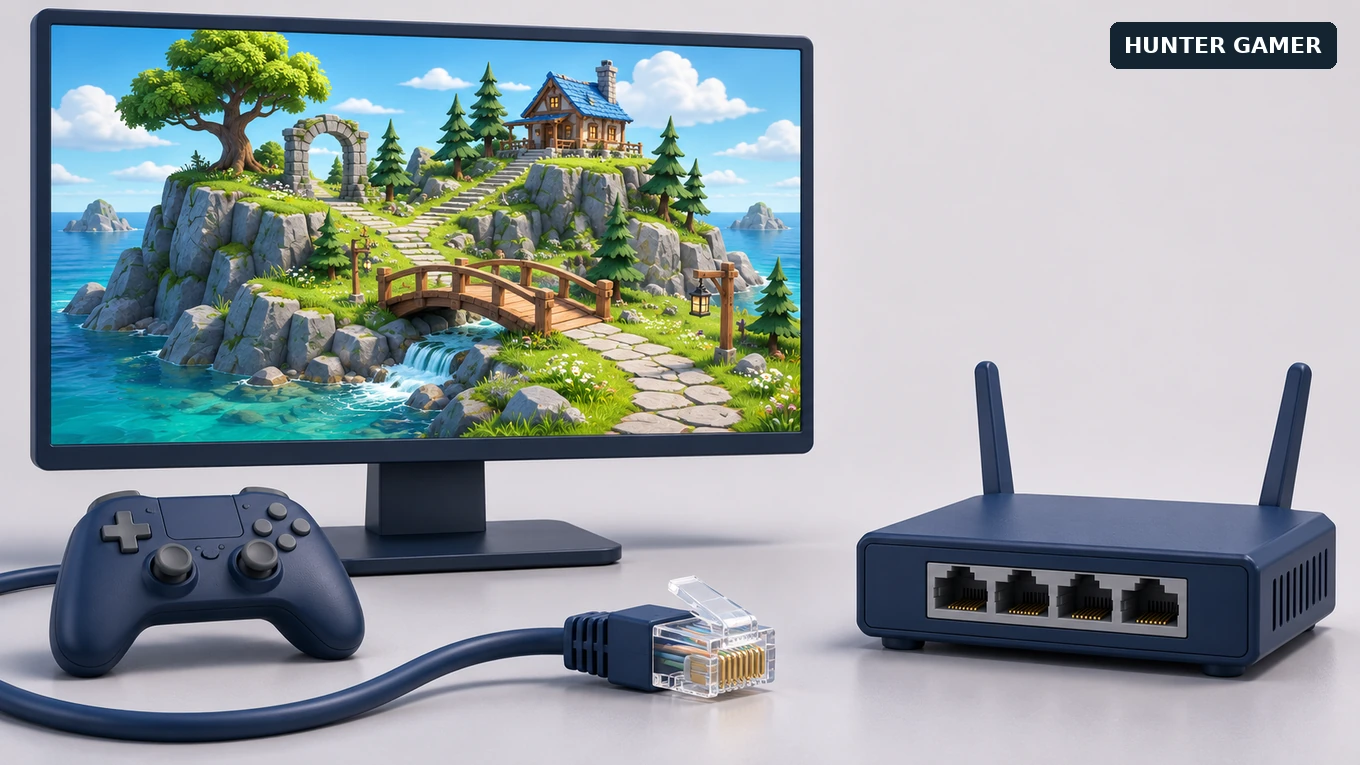
Editorial illustration of a desktop monitor showing an island game scene, with an unplugged Ethernet cable and a small router beside it.
Test the game with networking disconnected. Symbolic illustration, not a Steam screenshot.

Our suggested check is deliberately more specific than “Steam opened.” Reach the part of the game you expect to use: for example, load your existing single-player save rather than stopping at the title screen. A menu appearing is not evidence that the next screen, mode or piece of content will work offline.

Close the game, exit Steam normally, and reopen it while still disconnected. This checks the next startup, not just a session you began online. If something fails, record whether the prompt comes from Steam, the game or another launcher. Reconnect while you still can and resolve that specific requirement.

When shutting down afterward, Valve recommends closing Steam manually rather than force-quitting it, to help preserve the stored information Offline Mode needs.

If the internet is already gone, identify the blocker

Steam demands a login: Valve says there is no way to bypass that login without going online. More restarts cannot supply missing authentication. Restore a legitimate connection, sign in, and complete the preparation before the next offline session.

A downloaded game says it cannot start in Offline Mode: Valve identifies unfinished initial startup or a Steam/game update requirement as things to resolve online. “100%” downloaded and “ready for offline play” are not the same check.

The game asks for its own connection or launcher: check the publisher’s requirements. Steam’s setting cannot remove a separate online requirement. Choose a different game that you have successfully tested offline rather than looking for an authentication bypass.

The game also crashes while you are online: treat that as a separate fault. If the symptom points to missing or damaged installation files, our Steam file-verification checklist explains the repair check and its limits. File verification is not a substitute for offline eligibility or a completed login.

Reconnect before switching to another device

When internet access returns, reconnect and take Steam back online. Give supported games time to synchronize before continuing on another computer. Valve says Offline Mode prevents Steam Cloud synchronization until you return online; cloud support and the files included depend on the game.

If Steam reports a sync problem or conflicting files, pause instead of clicking through to play. Read our Steam Cloud conflict guide for the separate task of checking your last session and preserving saves. The offline setup checklist does not tell you which conflicting save to overwrite.

Frequently Asked Questions

Do I need to launch a Steam game online first?

Do I need to launch a Steam game online first?

Plan to do so. Valve says most games need an initial online startup before working offline. Its setup instructions tell you to launch every intended game and resolve any remaining installation or update requirements.

Can I bypass Steam’s login while offline?

Can I bypass Steam’s login while offline?

No supported bypass is available. Valve explicitly says a required Steam login needs an online connection. Saved credentials and advance preparation are what you need; Offline Mode is not a way around authentication.

Why will a fully downloaded game not start offline?

Why will a fully downloaded game not start offline?

It may still need its initial startup or an update, or it may require an active connection or external launcher. Valve lists these as separate Offline Mode checks. Finish setup online, then test the actual game disconnected.

Will Steam Cloud sync my progress while I am offline?

Will Steam Cloud sync my progress while I am offline?

No. Valve says synchronization waits until you return online. Let the game sync after reconnecting and address warnings before continuing on another device. Do not assume every game uses Steam Cloud for its saves.
Published by

Hunter Gamer

Hunter Gamer has covered games, esports, and streamers for readers in Bangladesh and beyond since 2019. The site publishes gaming news and explainers, practical settings and troubleshooting guides for mobile and PC players, Bangladesh buying information for gaming hardware and digital products, and profiles of creators alongside their official channels.

Articles are built on official game, platform, and product information where it is available, and sources are linked when a claim needs attribution. Because prices, release dates, and game settings change, each article carries a review date and readers are asked to check the linked source before buying anything or changing an account setting. Where something cannot be verified, the article says so rather than guessing. Articles are revised when an error is found or when a change makes an older guide misleading — corrections and news tips are welcome through the contact page.

About Hunter GamerSpotted an error? Tell us

Previous Post

Steam Verify Game Files: Repair Checklist (2026)

Related Posts

PC Games

Steam Verify Game Files: Repair Checklist (2026)

November 25, 2026
Stylized illustration of game blocks moving between two storage drives on a navy platform.
PC Games

How to Move Steam Games to Another Drive (2026)

November 23, 2026
Illustration of gameplay frames looping beside a monitor, with one frame saved to a video tile.
PC Games

OBS Replay Buffer Guide: Save Gaming Clips in 2026

November 21, 2026

Categories

  • Mobile Games
  • News
  • PC Games
  • PUBG
  • Reviews

Topics

2024 PUBG tricks Best Fortnite Xp Maps Best Games Fortnite Fortnite Xp Maps Gamer Lag fix PMPL 2023 South Asia PUBG PUBG game performance PUBG mobile lag fix Xp Maps
  • Top-Up Shop
  • About Us
  • Contact
  • Privacy Policy and Data Protection
  • Terms and Conditions of Website Use
  • Refund and Returns Policy for Digital Products
Call us: +880 1711 189127

Copyright © 2020 - 2026 Hunter Gamer · All Rights Reserved.

Welcome Back!

Login to your account below

Forgotten Password?

Retrieve your password

Please enter your username or email address to reset your password.

Log In
No Result
View All Result
  • Shop
  • Home
  • Mobile Games
    • PUBG
  • PC Games
  • News
  • Insights
  • Streamers
    • Australia
    • Bangladesh
    • Canada
    • Hong Kong
    • India
    • Indonesia
    • Malaysia
    • Moroccan
    • Nepal
    • Singapore
    • Spain
    • Taiwan
    • Thailand
    • Türkiye
    • United Kingdom
    • United States
    • Vietnam
  • Online Games
    • Dex Ball

Copyright © 2020 - 2026 Hunter Gamer · All Rights Reserved.