• Latest
  • Trending
  • All
Illustration of a phone displaying a miniature football pitch beside a wireless gamepad, with blue connection arcs.

eFootball Mobile Controller Support: Setup Guide (2026)

November 24, 2026
Stylized illustration of game blocks moving between two storage drives on a navy platform.

How to Move Steam Games to Another Drive (2026)

November 23, 2026
Illustration of two phones linked by orange sound waves on a tropical squad-game terrain model.

Free Fire Mic Not Working? Voice Chat Checklist (2026)

November 22, 2026
Symbolic illustration of an Android phone reviewing optional PUBG Mobile resource downloads

PUBG Mobile Storage: Remove Unused Resources (2026)

November 21, 2026
Illustration of gameplay frames looping beside a monitor, with one frame saved to a video tile.

OBS Replay Buffer Guide: Save Gaming Clips in 2026

November 21, 2026
Symbolic comparison of different local and cloud save copies on two computers

Steam Cloud Conflict: Which Save Should You Keep? (2026)

November 21, 2026
Symbolic control layout receiving a share code that repositions its buttons

Free Fire HUD Share Code: Import and Setup Guide (2026)

November 21, 2026
Illustration of a tilted phone above training targets with an amber rotation arrow.

PUBG Mobile Gyroscope Not Working? 2026 Checklist

November 17, 2026
A curved gaming monitor showing a colorful game scene with a glowing timeline bar below it, one segment highlighted in gold.

Steam Game Recording Guide 2026: Save and Export Clips

November 17, 2026
Two smartphones moving a glowing stream with a soccer ball from the old phone to the new phone under stadium lights.

eFootball Mobile Data Transfer: New Phone Guide (2026)

November 16, 2026
A smartphone wrapped in a glowing orange energy dome with a chain of light linking it to a floating shield emblem.

How to Bind a Free Fire Guest Account Safely in 2026

November 16, 2026
valorant settings guide hero

VALORANT Settings Guide: Seven Options Worth Checking

November 16, 2026
Five glowing crystal obelisks in different colors on a dark arena floor.

VALORANT Agent Profiles: All Abilities, Roles and How to Play Them

November 16, 2026
  • About Hunter Gamer
  • Advertising & Sponsorship Opportunities
  • Contact Us for Gaming News & Support
Tuesday, November 24, 2026
  • Login
Hunter Gamer
  • Shop
  • Home
  • Mobile Games
    • PUBG
  • PC Games
  • News
  • Insights
  • Streamers
    • Australia
    • Bangladesh
    • Canada
    • Hong Kong
    • India
    • Indonesia
    • Malaysia
    • Moroccan
    • Nepal
    • Singapore
    • Spain
    • Taiwan
    • Thailand
    • Türkiye
    • United Kingdom
    • United States
    • Vietnam
  • Online Games
    • Dex Ball

No products in the cart.

No Result
View All Result
Hunter Gamer
  • Shop
  • Home
  • Mobile Games
    • PUBG
  • PC Games
  • News
  • Insights
  • Streamers
    • Australia
    • Bangladesh
    • Canada
    • Hong Kong
    • India
    • Indonesia
    • Malaysia
    • Moroccan
    • Nepal
    • Singapore
    • Spain
    • Taiwan
    • Thailand
    • Türkiye
    • United Kingdom
    • United States
    • Vietnam
  • Online Games
    • Dex Ball
No Result
View All Result
Hunter Gamer
No Result
View All Result
Home Mobile Games

eFootball Mobile Controller Support: Setup Guide (2026)

by Hunter Gamer
November 24, 2026
in Mobile Games
Reading Time: 5 mins read
0 0
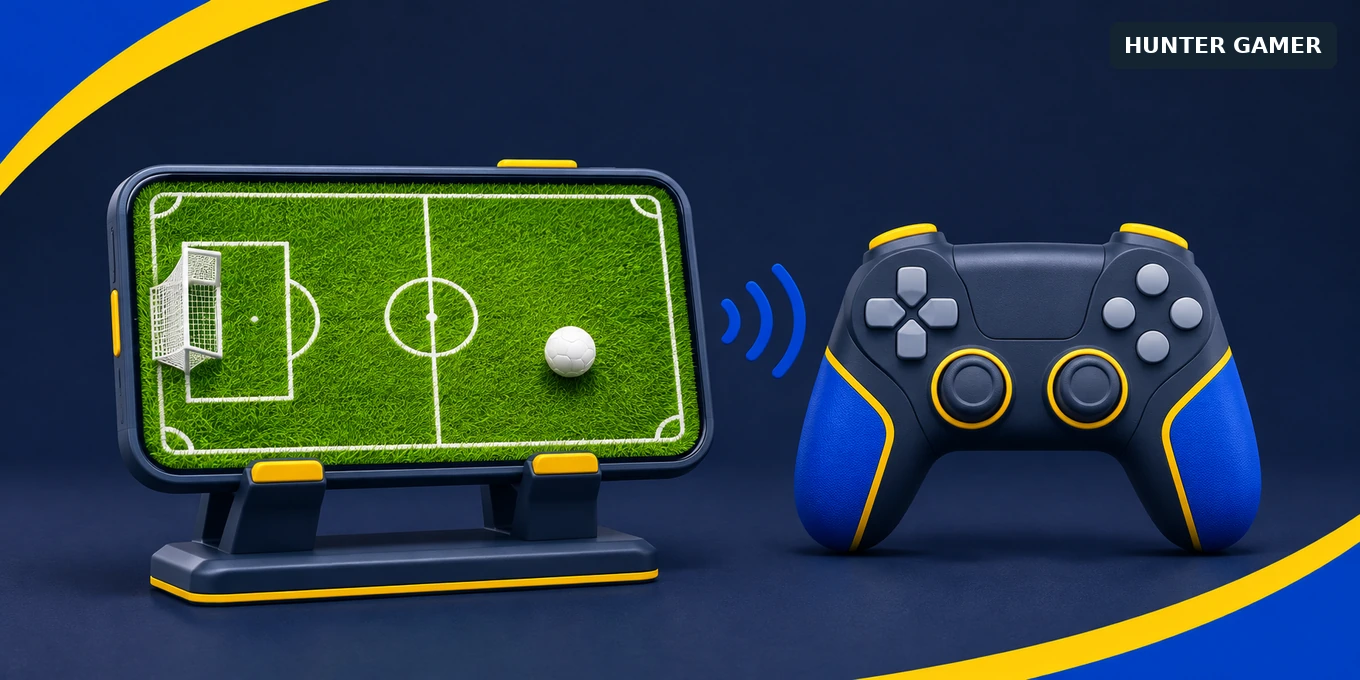
Illustration of a phone displaying a miniature football pitch beside a wireless gamepad, with blue connection arcs.

AI-generated editorial illustration of mobile football and a wireless controller, not a game screenshot or a compatibility guarantee.

3
VIEWS
Share on FacebookShare on Twitter

Yes, eFootball on mobile supports Bluetooth controllers, but not in every match or menu. KONAMI currently lists VS AI matches and Friend Match, including 1 vs 1 and Co-op. It also makes one important exception: AI matches in the lower divisions of eFootball League’s PvP category do not support controllers.

If your controller pairs with your phone but does nothing on the home screen, that does not automatically mean the connection failed. Menus still need touch controls. This guide separates those normal limits from pairing problems, using KONAMI’s current instructions checked on November 24, 2026.

Check the controller and match before buying anything

KONAMI’s mobile Controls Manual lists three Bluetooth-enabled controllers it has confirmed can work: DualSense wireless controller, DUALSHOCK 4 wireless controller and Xbox Wireless Controller. That is a tested list, not a promise that every product marketed as a mobile gamepad will work.

Other controllers may work, but KONAMI does not guarantee them. It also warns that wired connections may not work properly depending on the device’s operating system. Start with the supported Bluetooth route rather than buying an adapter to solve an unconfirmed problem.

Check three things separately: the controller supports your phone’s operating system; eFootball lists the controller or you accept the uncertainty of an unlisted model; and the match you want to play supports it. Passing one check does not establish the other two.

For example, Sony lists Android 12 or later and iOS/iPadOS 14.5 or later for DualSense connections. Those are Sony’s controller compatibility requirements, not eFootball’s own minimum requirements. A phone running the game is not, by itself, proof of supported DualSense compatibility.

Choose a supported match, not just any AI opponent

The official eFootball overview and mobile manual both list VS AI matches and Friend Match. Friend Match covers 1 vs 1 and Co-op, so saying that controllers are only usable against AI leaves out a supported option.

However, an AI opponent inside the lower divisions of the League’s PvP category is specifically excluded. For an initial check, choose a VS AI match outside that category or arrange a supported Friend Match. Do not use a League fixture as your first test and assume silence from the pad proves a hardware fault.

If your main reason for buying a controller is League PvP, the current supported-mode list does not support that purchase assumption. Check the live manual again before spending money. This guide does not assume that a future update will expand the list.

Pair a DualSense: a concrete Bluetooth example

For a first-time DualSense connection, Sony documents the following sequence. Use the manufacturer’s instructions for a different controller; pairing buttons are not universal.

  1. Disconnect any USB cable. Make sure the controller’s player indicator is off. If it is on, hold the PS button until it turns off.
  2. Hold the Create button, then also hold the PS button until the light bar blinks.
  3. Enable Bluetooth on your phone or tablet and select the controller from the available devices.
  4. After pairing, open eFootball and use the touchscreen to enter a supported match.

The pairing steps come from PlayStation Support. The match step follows KONAMI’s menu restriction. A Bluetooth connection confirms the device connection, not support for every screen or controller feature.
Test match controls without confusing them with menus

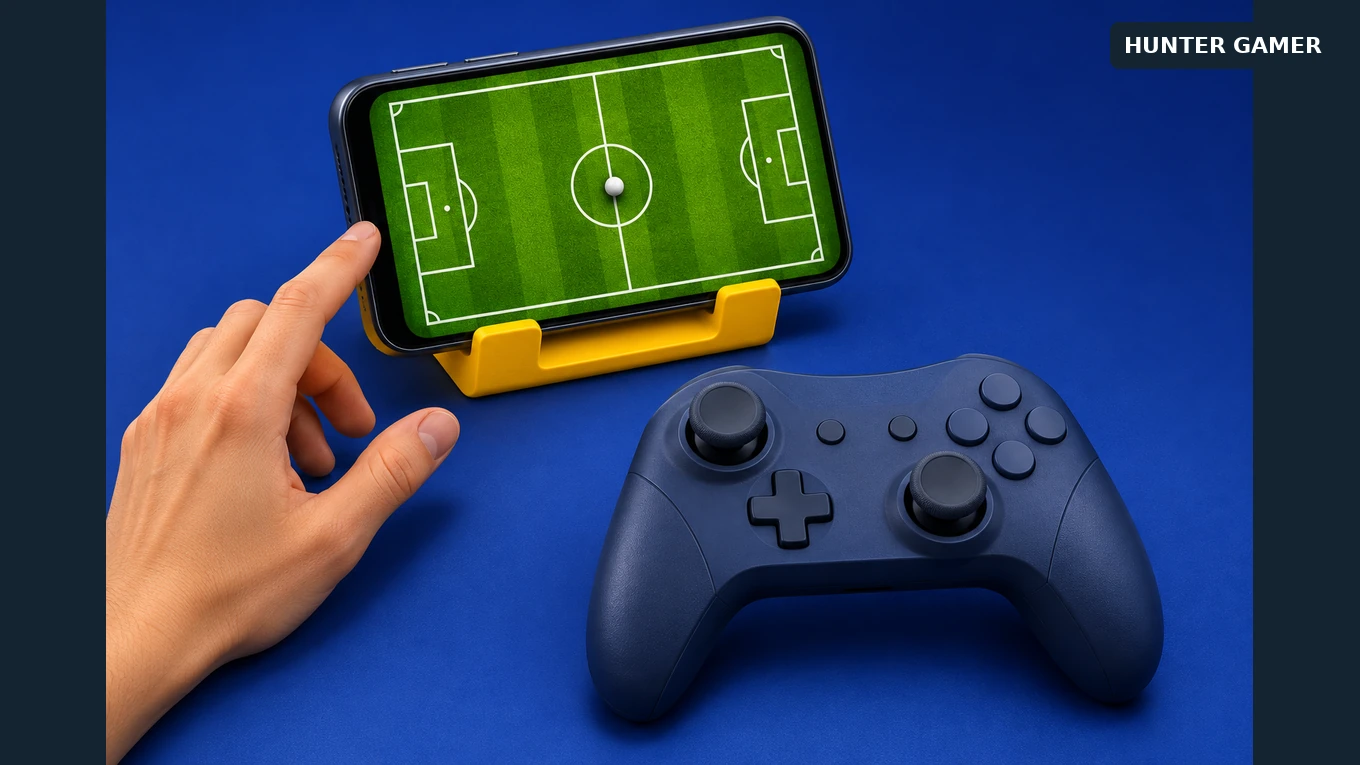
Illustration of a hand reaching toward a phone with a football pitch while a gamepad rests nearby.
Symbolic editorial illustration: keep the screen within reach for menu selections while using a controller during supported matches.

Once the match starts, check one action at a time: move your player, make a short pass, then switch your controlled player when defending. Use the mobile manual’s controller diagram for the buttons. This is a suggested setup check, not a claim that we tested your device.

Do not copy an entire console button guide and assume it applies unchanged. KONAMI marks several mobile commands as different from console and PC. The mobile manual also says the Command Configuration cannot be changed.

Keep the phone within reach. Touch controls remain available while a controller is connected, and you still need touch for menu selections. A practical setup is one where you can comfortably reach both the screen and the pad, rather than placing the phone too far away to handle menus.

If it does not work, identify which check failed

The controller does not appear in Bluetooth: return to its manufacturer’s pairing instructions and check OS compatibility. You have not yet established a phone-to-controller connection, so changing eFootball match options is not the first step.

Bluetooth is connected, but menus ignore the pad: use touch to enter a supported match. Menu navigation is explicitly outside eFootball mobile’s controller support.

It works in one match but not another: compare the modes with the official list, especially the lower-division League exception. Record the exact mode rather than simply calling both games “online” or “against AI.”

It still fails in a supported match: note your phone model, OS version, controller model, connection type and match mode before contacting support. An unlisted controller or a wired connection adds a compatibility question. Neither a reinstall nor another accessory purchase is a justified first conclusion from that symptom alone.

Moving to another phone is a separate task; use our eFootball mobile data-transfer guide before changing devices. For purchase-related questions rather than controls, see our eFootball Coins guide for Bangladesh.

Frequently Asked Questions

Can I use a controller in eFootball League on mobile?

Can I use a controller in eFootball League on mobile?

Do not assume League PvP is supported. KONAMI lists VS AI and Friend Match, and explicitly excludes AI matches in the lower divisions of the League’s PvP category. Check the current supported-mode list for your intended match.

Why does my connected controller do nothing in the menus?

Why does my connected controller do nothing in the menus?

KONAMI supports controllers during matches, not menu selections. Use touch to navigate and then check the pad in a supported match. The restriction appears in the official overview.

Can I remap the mobile controller buttons?

Can I remap the mobile controller buttons?

The mobile manual says the Command Configuration cannot be changed. Learn the mobile layout instead of expecting the console configuration options. This guide does not recommend third-party remapping workarounds.

Will any Bluetooth gamepad work with eFootball mobile?

Will any Bluetooth gamepad work with eFootball mobile?

No blanket guarantee is available. KONAMI confirms DualSense, DUALSHOCK 4 and Xbox Wireless Controller, while saying other products may work without a guarantee. Check both the tested-controller list and the controller maker’s OS requirements.

Images are AI-generated symbolic editorial illustrations, not eFootball screenshots or photographs of officially endorsed hardware.
Published by

Hunter Gamer

Hunter Gamer has covered games, esports, and streamers for readers in Bangladesh and beyond since 2019. The site publishes gaming news and explainers, practical settings and troubleshooting guides for mobile and PC players, Bangladesh buying information for gaming hardware and digital products, and profiles of creators alongside their official channels.

Articles are built on official game, platform, and product information where it is available, and sources are linked when a claim needs attribution. Because prices, release dates, and game settings change, each article carries a review date and readers are asked to check the linked source before buying anything or changing an account setting. Where something cannot be verified, the article says so rather than guessing. Articles are revised when an error is found or when a change makes an older guide misleading — corrections and news tips are welcome through the contact page.

About Hunter GamerSpotted an error? Tell us

Tags: Best GamesGamer
Previous Post

How to Move Steam Games to Another Drive (2026)

Related Posts

Illustration of two phones linked by orange sound waves on a tropical squad-game terrain model.
Mobile Games

Free Fire Mic Not Working? Voice Chat Checklist (2026)

November 22, 2026
Symbolic control layout receiving a share code that repositions its buttons
Mobile Games

Free Fire HUD Share Code: Import and Setup Guide (2026)

November 21, 2026
Illustration of a tilted phone above training targets with an amber rotation arrow.
Mobile Games

PUBG Mobile Gyroscope Not Working? 2026 Checklist

November 17, 2026

Categories

  • Mobile Games
  • News
  • PC Games
  • PUBG
  • Reviews

Topics

2024 PUBG tricks Best Fortnite Xp Maps Best Games Fortnite Fortnite Xp Maps Gamer Lag fix PMPL 2023 South Asia PUBG PUBG game performance PUBG mobile lag fix Xp Maps
  • Top-Up Shop
  • About Us
  • Contact
  • Privacy Policy and Data Protection
  • Terms and Conditions of Website Use
  • Refund and Returns Policy for Digital Products
Call us: +880 1711 189127

Copyright © 2020 - 2026 Hunter Gamer · All Rights Reserved.

Welcome Back!

Login to your account below

Forgotten Password?

Retrieve your password

Please enter your username or email address to reset your password.

Log In
No Result
View All Result
  • Shop
  • Home
  • Mobile Games
    • PUBG
  • PC Games
  • News
  • Insights
  • Streamers
    • Australia
    • Bangladesh
    • Canada
    • Hong Kong
    • India
    • Indonesia
    • Malaysia
    • Moroccan
    • Nepal
    • Singapore
    • Spain
    • Taiwan
    • Thailand
    • Türkiye
    • United Kingdom
    • United States
    • Vietnam
  • Online Games
    • Dex Ball

Copyright © 2020 - 2026 Hunter Gamer · All Rights Reserved.