- Latest
- Trending
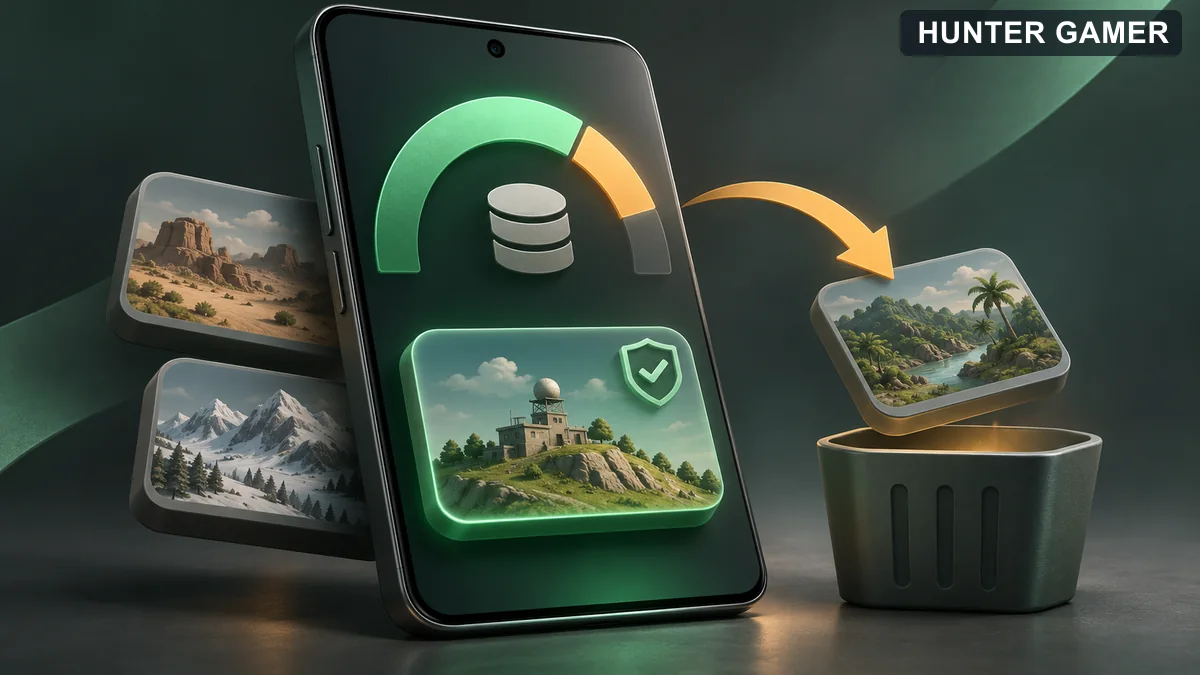
If PUBG Mobile is taking up too much storage, start in its Download Center or Resource Management Center. Review the optional content already on your phone and remove downloads you do not use. Do not confuse this with Android’s Clear storage button, which deletes app data.
The useful target is not a magic installation size. It is a game that has the maps and resources you need, without keeping every optional download. This guide explains how to choose what to keep, check the space recovered and avoid creating a new download problem before your next match.
The store download is only part of the picture. PUBG Mobile can download additional maps, modes and visual resources after installation. Esports.net’s downloadable-content guide explains this modular approach: players can choose content rather than install everything.
That means two phones can have different PUBG Mobile storage totals. A size quoted in an old tutorial is not a reliable target for your phone today. Use the figures shown by your current game and device instead.
Also separate storage from RAM. Google’s Android guidance describes storage as the space used to keep data and memory as the space used to run programs. Removing a resource pack addresses stored files; it is not a promise of higher FPS or more physical RAM.
Take a screenshot of the game’s download list and your phone’s available storage. On Android, start in the device’s Settings app and look for Storage; the exact layout varies by phone. These screenshots give you a useful before-and-after comparison.
Then decide what you actually plan to play. If your squad uses one map most evenings but sometimes switches modes, keep those downloads for now. Begin with content you can clearly identify and do not expect to use. Leave an unfamiliar item alone until you understand its description.
Our suggested rule is simple: keep tonight’s content, review occasional content, remove only clearly unwanted optional content. Do this when you have time to check the result, not while friends are waiting for you to join.
PUBG Mobile’s official 2.1 update announcement describes the resource center as the place to download and delete resources. A January 2026 Ligagame walkthrough also documents the manual-selection workflow. Labels can differ by client version and language, so follow the resource-management controls shown in your own game.
This is a guide to the game’s own controls, not a file-manager cleanup. Do not substitute deleting Android folders, installing a cleaner or resetting the app if your menu looks different. If you cannot identify the option, stop and use the game’s help route rather than guessing.
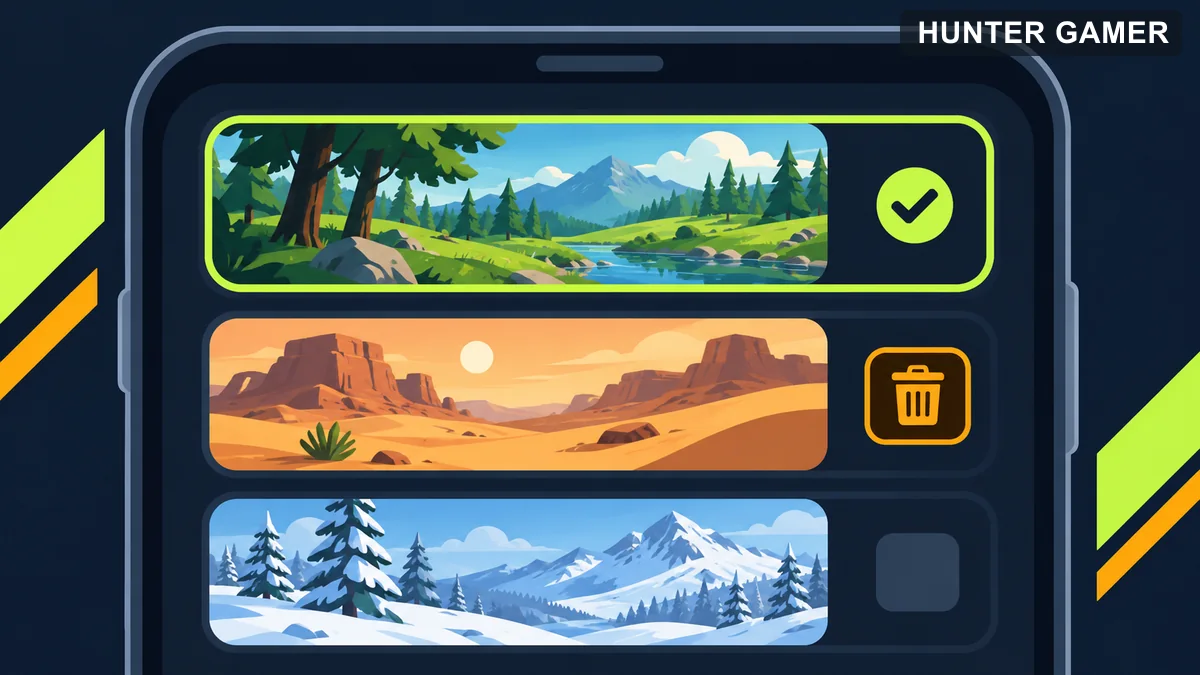
After cleanup, compare the phone’s available storage with your earlier screenshot. Record what you removed as well as the change. A screenshot saying “space recovered” is more useful when you also know which content is no longer downloaded.
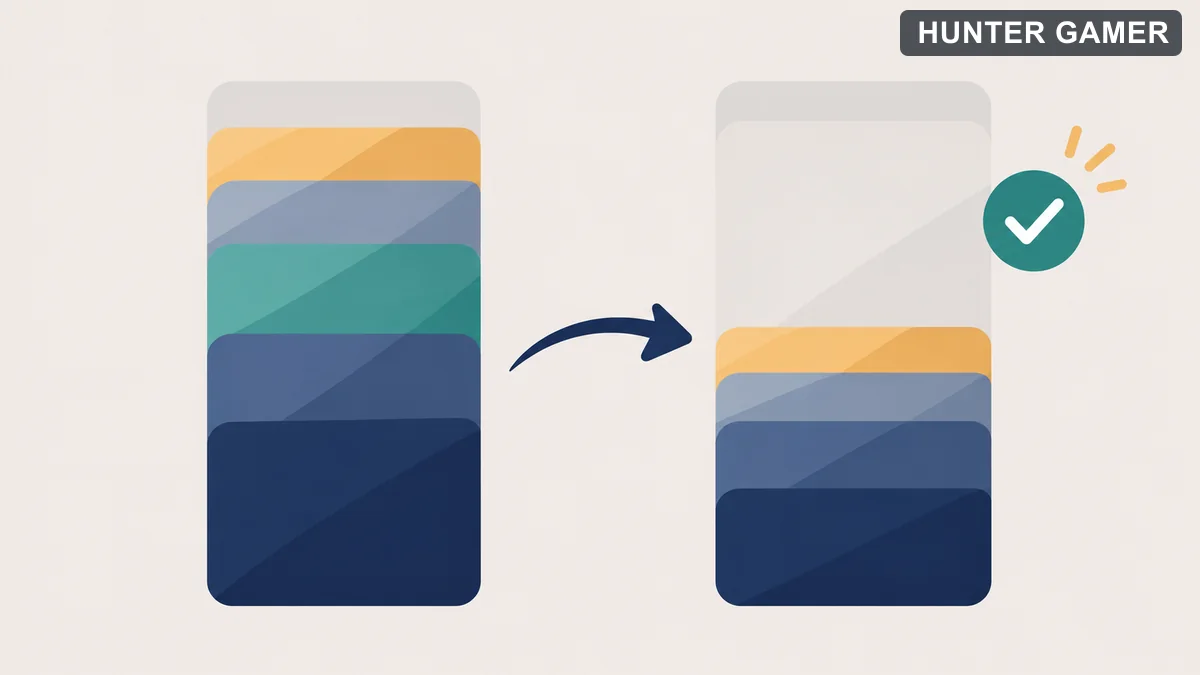
Next, select the map or mode you intend to play and check whether the game requests a download. If it does, finish the required download on a connection you are comfortable using before joining your squad. Avoid removing that same pack again just to chase a smaller total.
Review automatic-download options if your client exposes them. In its June 2022 developer Q&A, PUBG Mobile addressed players’ concerns about unwanted automatic downloads and confirmed a toggle. That is historical confirmation of the feature, not a guarantee of today’s exact button location.
If Google Play itself cannot finish the app update, that is a different problem. Use our PUBG Mobile Android update troubleshooting guide. Once the game is ready, our four-finger controls guide covers HUD setup separately; storage cleanup is not a control-layout fix.
Google makes an important distinction: Clear cache deletes temporary data, while Clear storage permanently deletes all app data. It recommends trying to delete data within the app first. Neither Android button is the same as selecting optional PUBG Mobile resources inside the game.
For this task, stay with the in-game resource list. This guide does not recommend clearing game data, uninstalling or making account changes. It also does not promise that every setting or login would survive a reset. If the remaining space is still insufficient, review other files on your phone with care rather than turning a storage tidy-up into an account-recovery job.
Additional maps, modes and other resources can be downloaded after installation. Esports.net explains those optional downloads. Your installed content determines your total, so there is no single size that applies to every player.
No. The official developer Q&A describes choosing resource packs for the modes you want. Keep required downloads for your chosen content and let the game’s current prompts guide you.
Start with the lobby’s Download Center and its resource-management controls. The official update notes identify this download/delete function. Review a manual selection before confirming; menu wording may vary.
No. Google’s Android support page says cache clearing removes temporary data, while Clear storage permanently deletes all app data. Do not use the latter as a substitute for selecting optional downloads inside PUBG Mobile.
Images are symbolic editorial illustrations, not screenshots or recreations of PUBG Mobile maps.