• Latest
  • Trending
  • All
A translucent cloud holding amber glass save tiles sits apart from a laptop holding cyan glass save tiles, connected by a thin line of light.

Steam Cloud Conflict: Which Save Should You Keep? (2026)

November 19, 2026
Symbolic illustration of floating glass control panels with gold and orange buttons above a landscape phone.

Free Fire HUD Share Code: Import and Setup Guide (2026)

November 19, 2026
Illustration of a tilted phone above training targets with an amber rotation arrow.

PUBG Mobile Gyroscope Not Working? 2026 Checklist

November 17, 2026
A curved gaming monitor showing a colorful game scene with a glowing timeline bar below it, one segment highlighted in gold.

Steam Game Recording Guide 2026: Save and Export Clips

November 17, 2026
Two smartphones moving a glowing stream with a soccer ball from the old phone to the new phone under stadium lights.

eFootball Mobile Data Transfer: New Phone Guide (2026)

November 16, 2026
A smartphone wrapped in a glowing orange energy dome with a chain of light linking it to a floating shield emblem.

How to Bind a Free Fire Guest Account Safely in 2026

November 16, 2026
A golden footballer hologram rising from a smartphone screen toward a floating golden shield with a check mark.

PUBG Mobile Account Recovery 2026: Choose the Right Option

November 16, 2026
valorant settings guide hero

VALORANT Settings Guide: Seven Options Worth Checking

November 16, 2026
Five glowing crystal obelisks in different colors on a dark arena floor.

VALORANT Agent Profiles: All Abilities, Roles and How to Play Them

November 16, 2026
Blue and amber blocks labeled Version 4.7, November 12, and Flash, November 13, 2026.

PUBG Mobile 4.7 and Flash Release Dates: November 2026

November 16, 2026
Editorial illustration of a stylized game profile screen with an ornamental nickname banner made of star and bracket symbols above a stat panel.

PUBG Mobile Name Symbols 2026: What Works and How to Change Your Name

November 16, 2026
Editorial illustration of a rugged metal supply capsule descending by parachute onto a rocky island as a storm and distant lightning gather over the sea.

Free Fire Storm Arena 2026: Free Rewards and What to Check

November 16, 2026
OBS virtual camera settings for gaming calls guide for Bangladesh gamers, updated November 2026

How to Set Up OBS Virtual Camera for Gaming Calls

November 16, 2026
  • About Hunter Gamer
  • Advertising & Sponsorship Opportunities
  • Contact Us for Gaming News & Support
Friday, November 20, 2026
  • Login
Hunter Gamer
  • Shop
  • Home
  • Mobile Games
    • PUBG
  • PC Games
  • Reviews
  • News
  • Insights
  • Streamers
    • Australia
    • Bangladesh
    • Canada
    • Hong Kong
    • India
    • Indonesia
    • Malaysia
    • Moroccan
    • Nepal
    • Singapore
    • Spain
    • Taiwan
    • Thailand
    • Türkiye
    • United Kingdom
    • United States
    • Vietnam
  • Online Games
    • Dex Ball

No products in the cart.

No Result
View All Result
Hunter Gamer
  • Shop
  • Home
  • Mobile Games
    • PUBG
  • PC Games
  • Reviews
  • News
  • Insights
  • Streamers
    • Australia
    • Bangladesh
    • Canada
    • Hong Kong
    • India
    • Indonesia
    • Malaysia
    • Moroccan
    • Nepal
    • Singapore
    • Spain
    • Taiwan
    • Thailand
    • Türkiye
    • United Kingdom
    • United States
    • Vietnam
  • Online Games
    • Dex Ball
No Result
View All Result
Hunter Gamer
No Result
View All Result
Home PC Games

Steam Cloud Conflict: Which Save Should You Keep? (2026)

by Hunter Gamer
November 19, 2026
in PC Games
Reading Time: 5 mins read
0 0
A translucent cloud holding amber glass save tiles sits apart from a laptop holding cyan glass save tiles, connected by a thin line of light.

AI-generated symbolic illustration of two different save copies waiting for your choice, not a Steam screen.

4
VIEWS
Share on FacebookShare on Twitter

A Steam Cloud conflict is a choice between two different save copies, not a request to pick whichever button looks safer. Keep the copy that matches your last real progress. Before choosing, close the game, identify where you last played and back up the local saves you can access. If you cannot tell which copy is right, stop rather than guess.

This guide explains how to compare the copies and what to do when the message is actually “unable to sync.” It follows Valve’s current support guidance; it is not a hands-on recovery test or a promise that overwritten progress can be restored.

First, identify which Steam Cloud problem you have

A conflict means Steam found different local and cloud files and cannot automatically choose between them. Valve explains that changes made in different places without a sync can cause this. Playing offline is one possible trigger because files do not sync until you return online.

Unable to sync is different: Steam could not complete synchronization. That alone does not tell you which copy contains your latest progress. Valve recommends addressing the cause before launching the game; choosing to play anyway can create a conflict and risk lost progress. See the official Steam Cloud support guide.

Missing progress without a warning needs a separate check. Confirm that the game uses Steam Cloud for its saves, not just other settings. If your last session was on another computer, its copy may never have uploaded. Do not immediately start a new run and assume the old save is gone.

Before choosing: preserve your saves and last-session notes

Leave the game closed while you work out what happened. Write down the device you last used, whether you were offline, the approximate time you stopped and the progress you remember: a chapter, mission, character or save slot. Compare those details with the dates and times in the conflict window.

Next, use the game’s own support documentation to locate its local saves. Copy the relevant save folder to a separate backup location before resolving the conflict. Copy it; do not move, rename or delete the originals. Keep backups from different computers separate so one does not overwrite the other.

There is no safe universal folder instruction for every game. Developers choose which files Steam Cloud synchronizes and where they live, as Valve’s Steamworks documentation explains. A folder name alone does not prove it contains all your progress. If you cannot identify the correct files, ask the game’s support team before replacing anything.

This backup-first approach also appears in Arc Games’ advice for Hob. That article warns that mistakenly overwritten saves may not be recoverable. A backup preserves the files you copied; it does not guarantee those files contain the session you want.
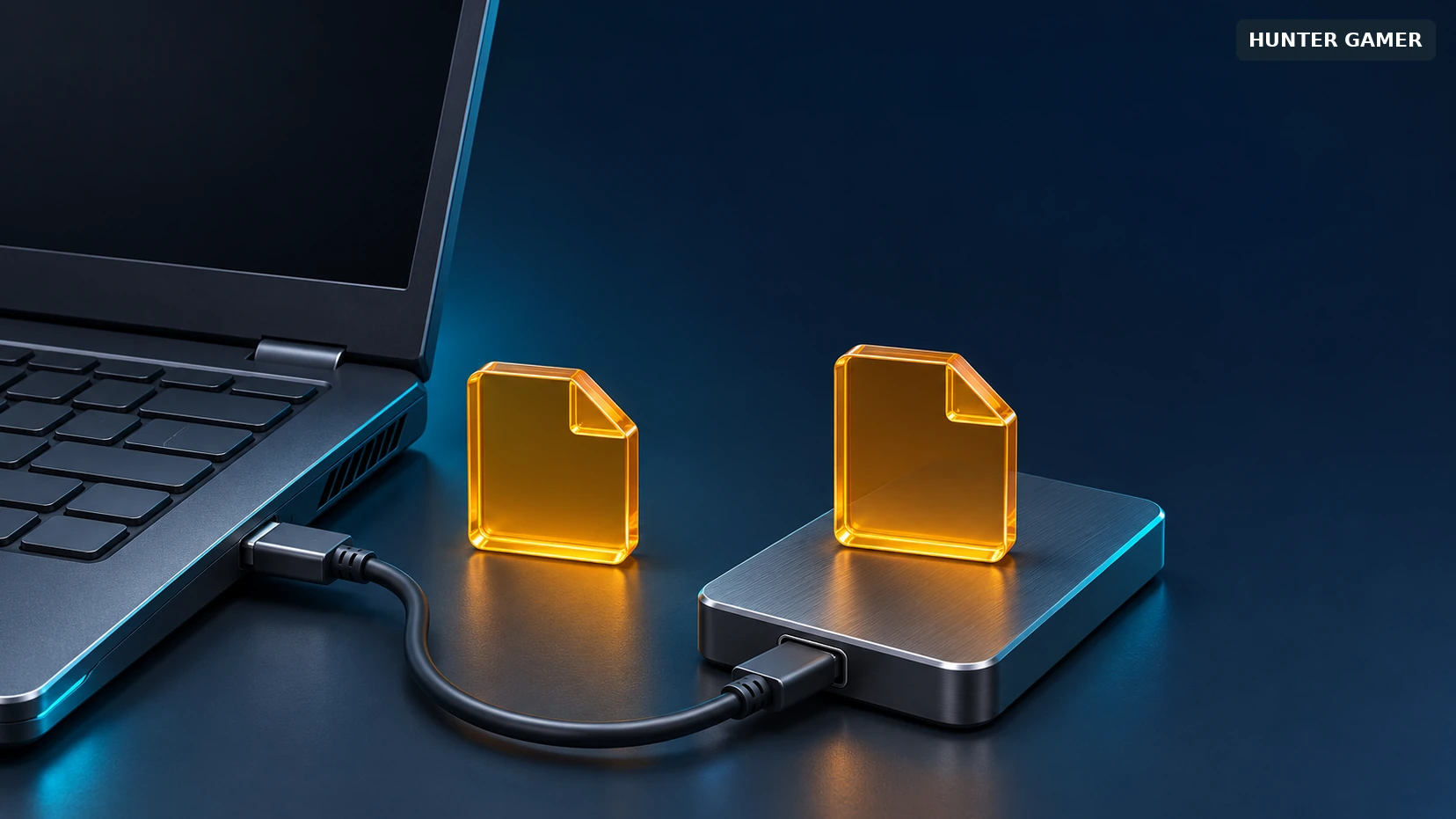
Two matching amber glass file tiles: one resting beside a laptop, its duplicate placed on a connected external drive.
AI-generated symbolic illustration of keeping a duplicate copy on separate storage, not a game screen.

Local or cloud: choose using your play history

Choose the local copy only when you have good reason to believe this computer holds the progress you want. For example, you played here offline, finished another mission and have not played elsewhere since. The local timestamp should make sense alongside that session.

Choose the cloud copy only when you have good reason to believe it contains the desired progress. If you last played on another computer, confirm that its session synchronized before relying on the cloud. “I played on the other PC” is not the same as “that PC uploaded its save.”

Valve says the most recently modified files are usually the ones you want, but explicitly tells players to compare the times with their actual play history. Arc’s Hob guidance corroborates the direction: upload from the current computer when it holds the latest save; download when the desired save is in the cloud. Neither supports blindly choosing one side every time.

Hypothetical example: you finish chapter six on your laptop offline, while the cloud copy predates that session. Your laptop’s local copy is the candidate to preserve. In the opposite case, you finish chapter six on a desktop and let it sync, then open a laptop that still has chapter five. The synchronized cloud copy is the candidate. These examples illustrate the reasoning, not a guarantee about an unidentified file.

If the timestamps or devices do not fit your memory, cancel or leave the choice unresolved. Do not delete cloud files, clear save folders or repeatedly toggle synchronization to force a result. Once you have made an informed choice, check the game’s save-selection screen for the expected progress before continuing.

If Steam cannot sync, fix that before switching devices

Check that you are online and allow Steam to finish its current synchronization. For a game that supports it, the per-game setting is under Library → right-click the game → Properties → General. The global control is under Steam Settings → Cloud. Turning Cloud off stops normal cloud saving for that game; it does not select or recover the correct save.

If the error persists, Valve suggests checking the connection, restarting network hardware when appropriate and testing another network. Do not disable security software as a first step. For more complex interference problems, get technical help. Record the exact error and game name rather than trying unrelated save-deletion fixes.

For future sessions, close the game normally and let synchronization finish before shutting down or opening it elsewhere. Valve’s developer documentation describes synchronization before and after play. Also check game-specific support before assuming saves will transfer between different operating systems.

Related Steam guides cover different tasks: Steam Link streams your PC game to an Android phone, while Steam Game Recording saves and exports clips. Neither workflow should be treated as a backup of your game progress.

Frequently Asked Questions

Should I always choose the newest Steam Cloud save?

Should I always choose the newest Steam Cloud save?

No. The newest timestamp is useful evidence, but Valve says to compare it with your actual play history. If it does not match the session you want, preserve available saves and investigate before selecting a copy.

Can I play while Steam says it is unable to sync?

Can I play while Steam says it is unable to sync?

The client may offer that option, but it is not the recommended next step. Valve warns that playing anyway can cause a conflict and lost progress. Resolve the sync problem first.

Does Steam Cloud sync saves while I am offline?

Does Steam Cloud sync saves while I am offline?

No. Steam’s support guide says Offline Mode delays synchronization until you return online. Reconnect and allow syncing before continuing the same game on another device.

Can Steam Support restore an overwritten save?

Can Steam Support restore an overwritten save?

Do not rely on that. Valve says Steam Support cannot recover lost saves. A useful copy might still exist on the computer you last played on, but that is a possibility to check, not a recovery guarantee. Consult the game’s developer about any game-specific backups.

Published by

Hunter Gamer

Hunter Gamer has covered games, esports, and streamers for readers in Bangladesh and beyond since 2019. The site publishes gaming news and explainers, practical settings and troubleshooting guides for mobile and PC players, Bangladesh buying information for gaming hardware and digital products, and profiles of creators alongside their official channels.

Articles are built on official game, platform, and product information where it is available, and sources are linked when a claim needs attribution. Because prices, release dates, and game settings change, each article carries a review date and readers are asked to check the linked source before buying anything or changing an account setting. Where something cannot be verified, the article says so rather than guessing. Articles are revised when an error is found or when a change makes an older guide misleading — corrections and news tips are welcome through the contact page.

About Hunter GamerSpotted an error? Tell us

Tags: Gamer
Previous Post

Free Fire HUD Share Code: Import and Setup Guide (2026)

Related Posts

A curved gaming monitor showing a colorful game scene with a glowing timeline bar below it, one segment highlighted in gold.
PC Games

Steam Game Recording Guide 2026: Save and Export Clips

November 17, 2026
valorant settings guide hero
PC Games

VALORANT Settings Guide: Seven Options Worth Checking

November 16, 2026
Five glowing crystal obelisks in different colors on a dark arena floor.
PC Games

VALORANT Agent Profiles: All Abilities, Roles and How to Play Them

November 16, 2026

Categories

  • Mobile Games
  • News
  • PC Games
  • PUBG
  • Reviews

Topics

2024 PUBG tricks Best Fortnite Xp Maps Best Games Cyberpunk Days Gone Fortnite Fortnite Xp Maps Gamer Lag fix PMPL 2023 South Asia PUBG PUBG game performance PUBG mobile lag fix PUBG Mobile Redeem Codes 2023 Xp Maps
  • Top-Up Shop
  • About Us
  • Contact
  • Privacy Policy and Data Protection
  • Terms and Conditions of Website Use
  • Refund and Returns Policy for Digital Products
Call us: +880 1711 189127

Copyright © 2020 - 2026 Hunter Gamer · All Rights Reserved.

Welcome Back!

Login to your account below

Forgotten Password?

Retrieve your password

Please enter your username or email address to reset your password.

Log In
No Result
View All Result
  • Shop
  • Home
  • Mobile Games
    • PUBG
  • PC Games
  • Reviews
  • News
  • Insights
  • Streamers
    • Australia
    • Bangladesh
    • Canada
    • Hong Kong
    • India
    • Indonesia
    • Malaysia
    • Moroccan
    • Nepal
    • Singapore
    • Spain
    • Taiwan
    • Thailand
    • Türkiye
    • United Kingdom
    • United States
    • Vietnam
  • Online Games
    • Dex Ball

Copyright © 2020 - 2026 Hunter Gamer · All Rights Reserved.