- Latest
- Trending
To import a Free Fire HUD share code, start in Settings > HUD and find the share-code tool on the HUD Recommendation page. Before applying the layout, check whether the game will also sync its sensitivity settings. If you only want new button positions, keep your current sensitivity for the first test.
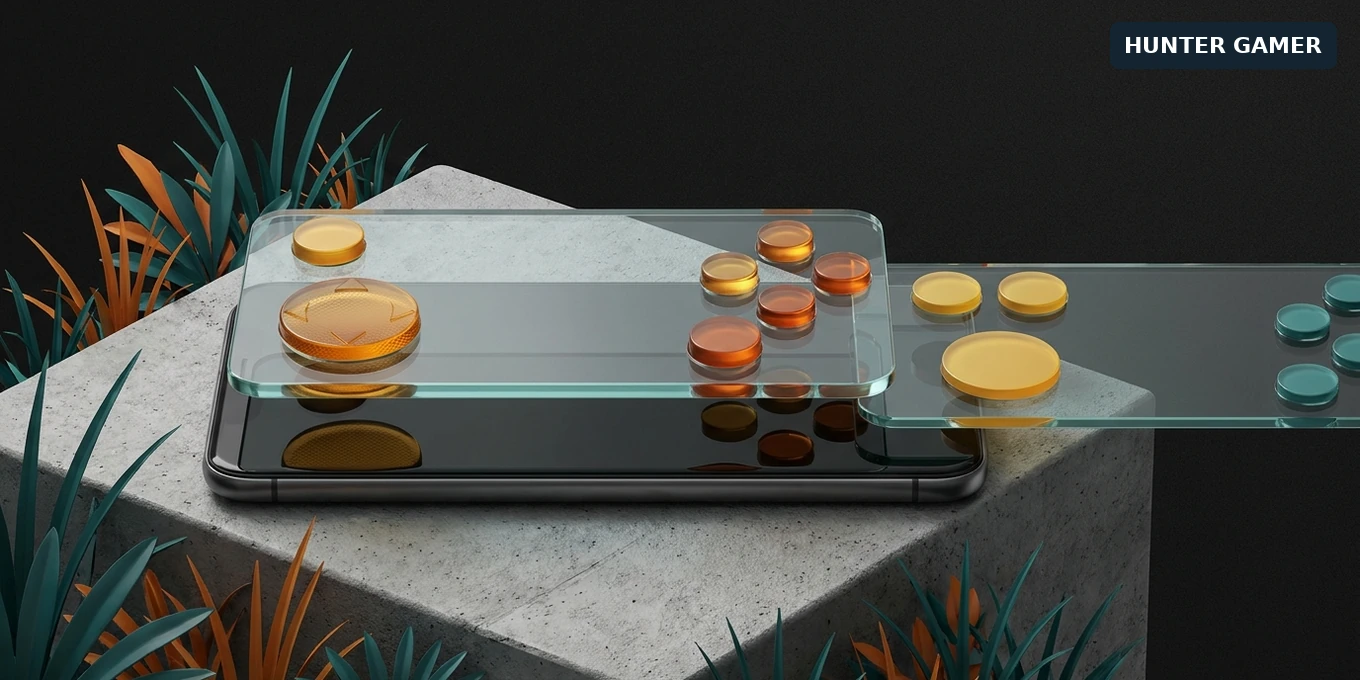
This guide explains the sharing flow documented by Garena, why older instructions point to different menus, and how to check a layout before taking it into ranked play. It is based on official patch notes, not a claim that we have tested a creator’s code. Menu wording may differ in your current client. The featured image is a symbolic editorial illustration, not a game screenshot.
Your HUD is the arrangement of on-screen controls: the buttons you reach for while moving, aiming, firing and using items. Garena’s custom HUD help article describes changing button position, size and transparency. The article is in Portuguese, but those basic editor functions are separate from its older menu screenshots.
Do not assume a share code changes only that arrangement. In its OB52 patch notes, Garena says HUD presets and share codes include sensitivity settings too, with a choice about syncing them. Free Fire Mania’s coverage of those notes also records that choice.
Before trying a different setup, take screenshots of your current HUD and sensitivity values. If your client offers a way to share your existing layout, keep that output as well. Screenshots are a useful reference if the new arrangement is uncomfortable; do not rely on an assumed automatic backup.
There is a reason menu instructions conflict. OB50’s July 2025 notes placed switchable HUD designs under Settings > In-Match. OB52 later documented Settings > HUD. An old menu path does not prove the feature disappeared.
This is an import guide, not a list of supposedly verified pro codes. A creator’s name next to a string on another website is not enough evidence to attribute that layout to them.
Our suggested check is simple: use the same grip and repeat the same actions in a training session. Judge the layout by missed taps and uncomfortable reaches, not by one lucky fight. Keep sensitivity unchanged during this first comparison so an unfamiliar aim speed does not confuse the result.
For example, if you keep tapping jump when you meant to crouch, try increasing the space between those buttons before changing aim sensitivity. If the controls respond but the whole game stutters, use our Free Fire lag troubleshooting guide rather than treating every problem as a layout issue.
A layout is only part of playing well. Once the controls are comfortable, our Free Fire match-planning and practice tips cover decisions beyond button placement.
A rejected code: compare the pasted string with the sender’s original, check that it is a HUD share code, and ask the sender to share it again through the game. These are troubleshooting checks, not proof of a particular server error. Do not label every rejection “expired”: Garena’s OB50 notes explicitly say shareable HUD codes no longer expire.
A valid but uncomfortable layout: keep the parts you can reach and adjust the rest. Copying positions is not the same as copying another player’s hand size, grip or practice. You do not need to adopt extra fingers just because a preset does.
Aim feels different after import: compare your sensitivity settings with the screenshots you saved. If you chose to sync the preset’s sensitivity, the change may be intentional rather than a broken HUD.
Consider Smart Adjust as another starting point. Garena’s OB53 notes describe a feature that suggests HUD adjustments using screen-tap data and HUD usage patterns. They also add sharing with in-game friends, social media, links and QR codes. Review any suggestion and repeat your practical check; the notes do not promise better aim or guaranteed headshots.
Garena’s OB52 notes place it at the bottom-left of the HUD Recommendation page under Settings > HUD. Older instructions may show Settings > In-Match. Follow the labels in your installed client if the interface differs.
It can. Garena says presets and share codes include sensitivity settings, but you can choose whether to sync them. Read that choice rather than assuming the import changes only button positions.
Garena’s OB50 patch notes say shareable HUD codes no longer expire. That does not verify every string found online. If yours is rejected, check the original code and ask the sender to share it again rather than assuming an expiry date.
The OB53 notes describe it as a tool that suggests HUD adjustments by analyzing screen-tap data and HUD usage patterns. Treat its suggestions as layouts to assess, not a guarantee of better results.