• Latest
  • Trending
  • All
Two smartphones moving a glowing stream with a soccer ball from the old phone to the new phone under stadium lights.

eFootball Mobile Data Transfer: New Phone Guide (2026)

November 15, 2026
A smartphone wrapped in a glowing orange energy dome with a chain of light linking it to a floating shield emblem.

How to Bind a Free Fire Guest Account Safely in 2026

November 15, 2026
A golden footballer hologram rising from a smartphone screen toward a floating golden shield with a check mark.

PUBG Mobile Account Recovery 2026: Choose the Right Option

November 15, 2026
valorant settings guide hero

VALORANT Settings Guide: Seven Options Worth Checking

November 15, 2026
Five glowing crystal obelisks in different colors on a dark arena floor.

VALORANT Agent Profiles: All Abilities, Roles and How to Play Them

November 15, 2026
Blue and amber blocks labeled Version 4.7, November 12, and Flash, November 13, 2026.

PUBG Mobile 4.7 and Flash Release Dates: November 2026

November 15, 2026
Editorial illustration of a stylized game profile screen with an ornamental nickname banner made of star and bracket symbols above a stat panel.

PUBG Mobile Name Symbols 2026: What Works and How to Change Your Name

November 10, 2026
Editorial illustration of a rugged metal supply capsule descending by parachute onto a rocky island as a storm and distant lightning gather over the sea.

Free Fire Storm Arena 2026: Free Rewards and What to Check

November 9, 2026
OBS virtual camera settings for gaming calls guide for Bangladesh gamers, updated November 2026

How to Set Up OBS Virtual Camera for Gaming Calls

November 9, 2026
Editorial illustration of separate voice, game and combined audio recordings on translucent tapes

OBS Separate Audio Tracks: Record Your Mic and Game Audio for Stream Highlights

November 6, 2026
Editorial microphone and audio meter with a physical stop marking the output ceiling

OBS Microphone Limiter Settings: Control Loud Voice Peaks in Gaming Streams

November 6, 2026
Editorial audio mixer with game-sound level lowering while microphone speech rises

OBS Audio Ducking: Lower Game Sound Automatically While You Talk

November 6, 2026
Two mobile game scenes comparing a large battle royale island with a compact multiplayer arena

Call of Duty: Mobile Overview for PUBG Players: Modes, Loadouts, and What to Try

November 12, 2026
  • About Hunter Gamer
  • Advertising & Sponsorship Opportunities
  • Contact Us for Gaming News & Support
Monday, November 16, 2026
  • Login
Hunter Gamer
  • Shop
  • Home
  • Mobile Games
    • PUBG
  • PC Games
  • Reviews
  • News
  • Insights
  • Streamers
    • Australia
    • Bangladesh
    • Canada
    • Hong Kong
    • India
    • Indonesia
    • Malaysia
    • Moroccan
    • Nepal
    • Singapore
    • Spain
    • Taiwan
    • Thailand
    • Türkiye
    • United Kingdom
    • United States
    • Vietnam
  • Online Games
    • Dex Ball

No products in the cart.

No Result
View All Result
Hunter Gamer
  • Shop
  • Home
  • Mobile Games
    • PUBG
  • PC Games
  • Reviews
  • News
  • Insights
  • Streamers
    • Australia
    • Bangladesh
    • Canada
    • Hong Kong
    • India
    • Indonesia
    • Malaysia
    • Moroccan
    • Nepal
    • Singapore
    • Spain
    • Taiwan
    • Thailand
    • Türkiye
    • United Kingdom
    • United States
    • Vietnam
  • Online Games
    • Dex Ball
No Result
View All Result
Hunter Gamer
No Result
View All Result
Home Mobile Games

eFootball Mobile Data Transfer: New Phone Guide (2026)

by Hunter Gamer
November 15, 2026
in Mobile Games
Reading Time: 5 mins read
0 0
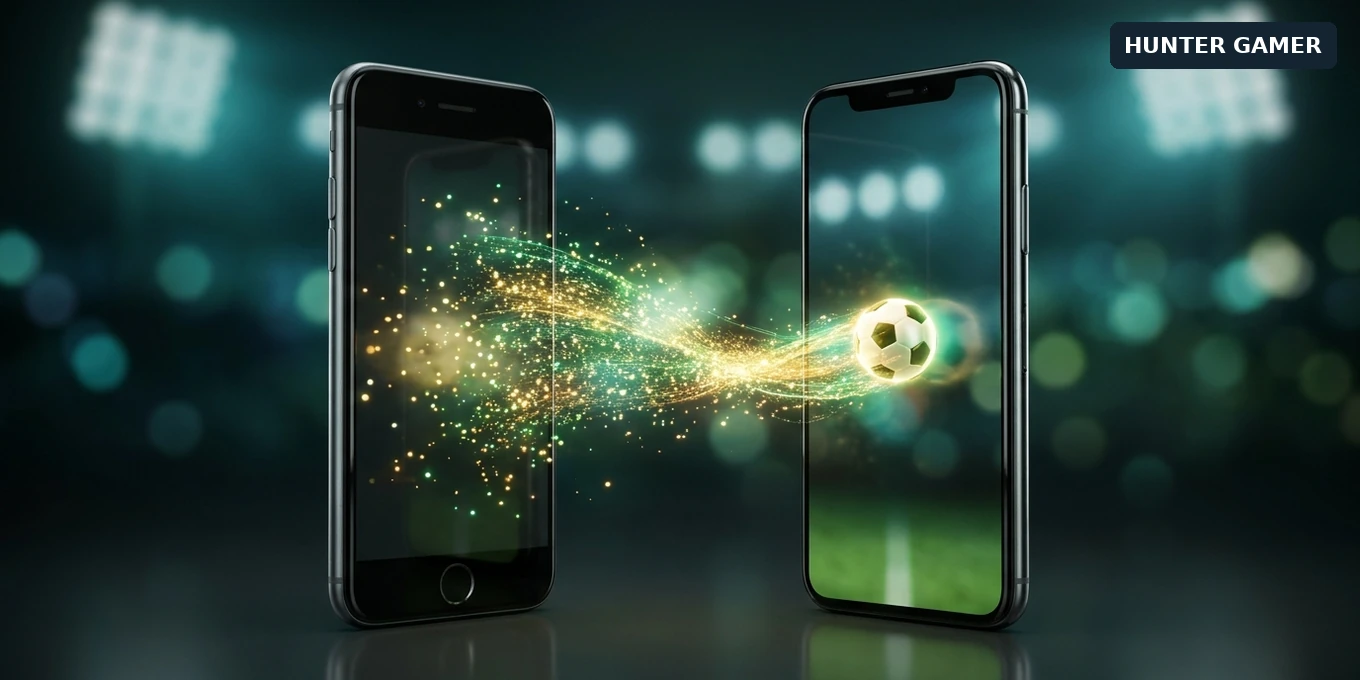
Two smartphones moving a glowing stream with a soccer ball from the old phone to the new phone under stadium lights.

AI-generated symbolic illustration of moving eFootball game data to a new phone, not a game screenshot.

5
VIEWS
Share on FacebookShare on Twitter

To move your eFootball mobile account to a new phone, link the existing game data on your old phone first, then use Data Transfer on the new phone’s title screen. If you are switching between Android and iPhone, use a KONAMI ID rather than Google Play or Game Center.

Before switching operating systems, also check the coin-transfer answers in KONAMI’s official eFootball FAQ. Do not assume that restoring your team means every balance will look identical. Check the account and its balance before wiping or trading in your old phone.

This guide covers moving your own mobile account, not buying an account or moving a mobile team to a console. The instructions below come from KONAMI’s current support pages, checked on November 15, 2026; they are not a hands-on transfer test. Images are symbolic editorial illustrations, not game screenshots.

Choose the transfer method for your two phones

  • Android to Android: KONAMI lists Google Play and KONAMI ID as transfer options.
  • iPhone to iPhone: KONAMI lists Game Center and KONAMI ID.
  • Android to iPhone, or iPhone to Android: use a KONAMI ID. The platform-specific Google Play and Game Center routes are not the cross-OS option.

These are the routes in the official transfer instructions. KONAMI’s separate mobile account-restoration guidance also warns that a platform-account transfer cannot restore your account when you change operating systems.

For example, replacing one Android phone with another gives you a same-OS choice. Replacing that Android phone with an iPhone changes the route: prepare the KONAMI ID link while you can still open the original game. A normal phone backup is not a substitute for checking the game’s own Link Data status.
Prepare the old phone before you erase anything

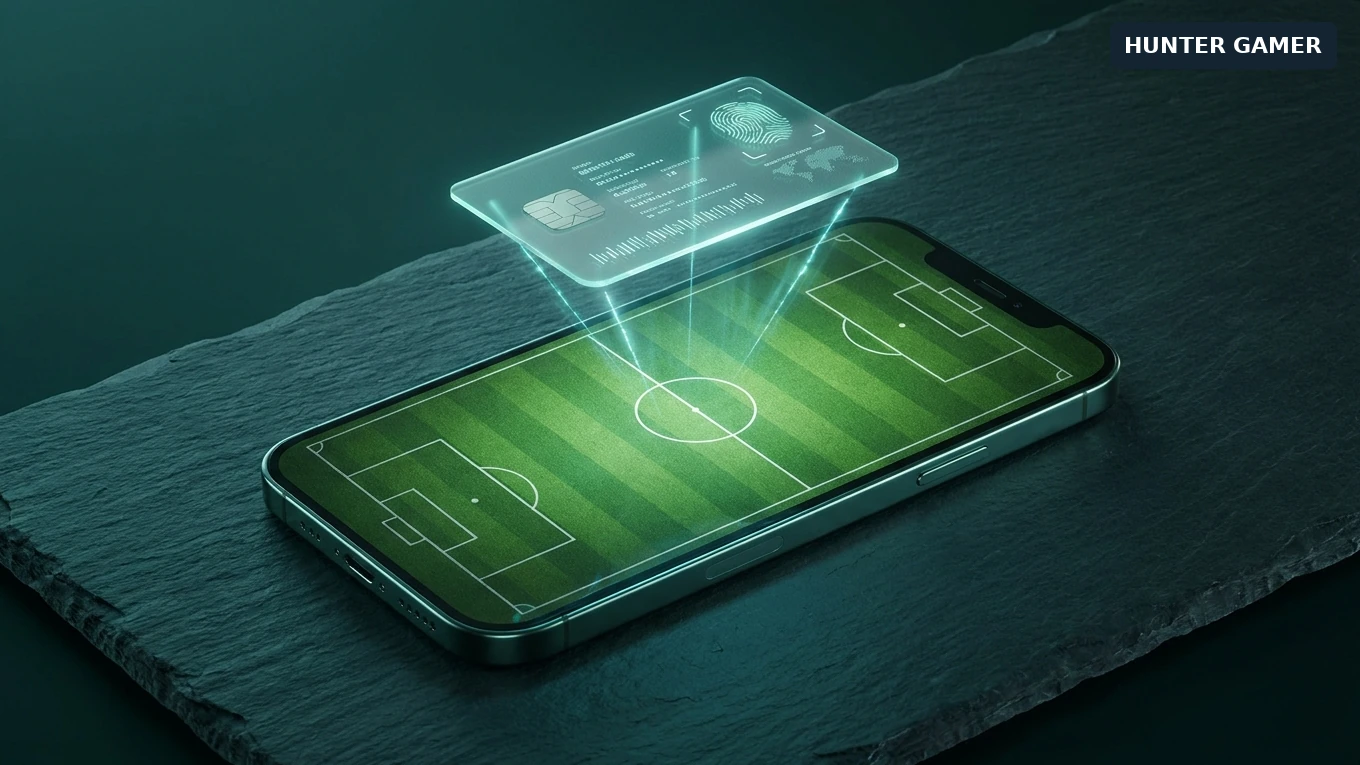
A phone showing a green football pitch with a glowing identity-card hologram floating above it.
AI-generated symbolic illustration of linking game data to a KONAMI ID, not a game screen.

Open the existing team you want to keep. In KONAMI’s account-linking guide, the mobile route is Extras → Support → Link Data, followed by the KONAMI ID link option. Menu wording can differ slightly by device.

  1. Check that you can sign in to the KONAMI ID you intend to use. Do not guess between several accounts.
  2. Follow the in-game linking flow. It opens the browser for My KONAMI; read the account details and any confirmation before proceeding.
  3. Complete verification yourself if requested. KONAMI’s guide says a confirmation code may be sent to the registered email address. Never send that code to a seller or someone offering to transfer the account for you.
  4. Return to the game and check the link status. KONAMI’s guide describes a “Linked Successfully” message and explains where to check the linkage.
  5. Keep the KONAMI ID registration confirmation email, as the official FAQ recommends. Also make a private note of your game User ID and current coin balance so you can compare them after the move.

Our recommendation is to keep the old installation intact until you have confirmed the right account on the new phone. Linking, transferring and erasing a phone are separate actions; do not rush through all three because the new app has finished downloading.

Restore the linked account on the new phone

Install the official eFootball app, open it and start from the title screen. For the KONAMI ID route, choose Data Transfer → Transfer from a KONAMI ID-linked account, then sign in to My KONAMI with the account linked to the old game. This is the new-device sequence documented in the official FAQ.

If you chose a same-OS platform-account route instead, select the matching Google Play-linked or Game Center-linked transfer option. Use the same platform account you linked on the old phone, not simply whichever account happens to be signed in on the new device.

Once the game opens, check your User ID and familiar team details. If it is not the account you expected, stop before making purchases or erasing the old phone. Recheck which login you used and follow official support rather than repeatedly trying unrelated accounts.
Check the account and coin balance separately

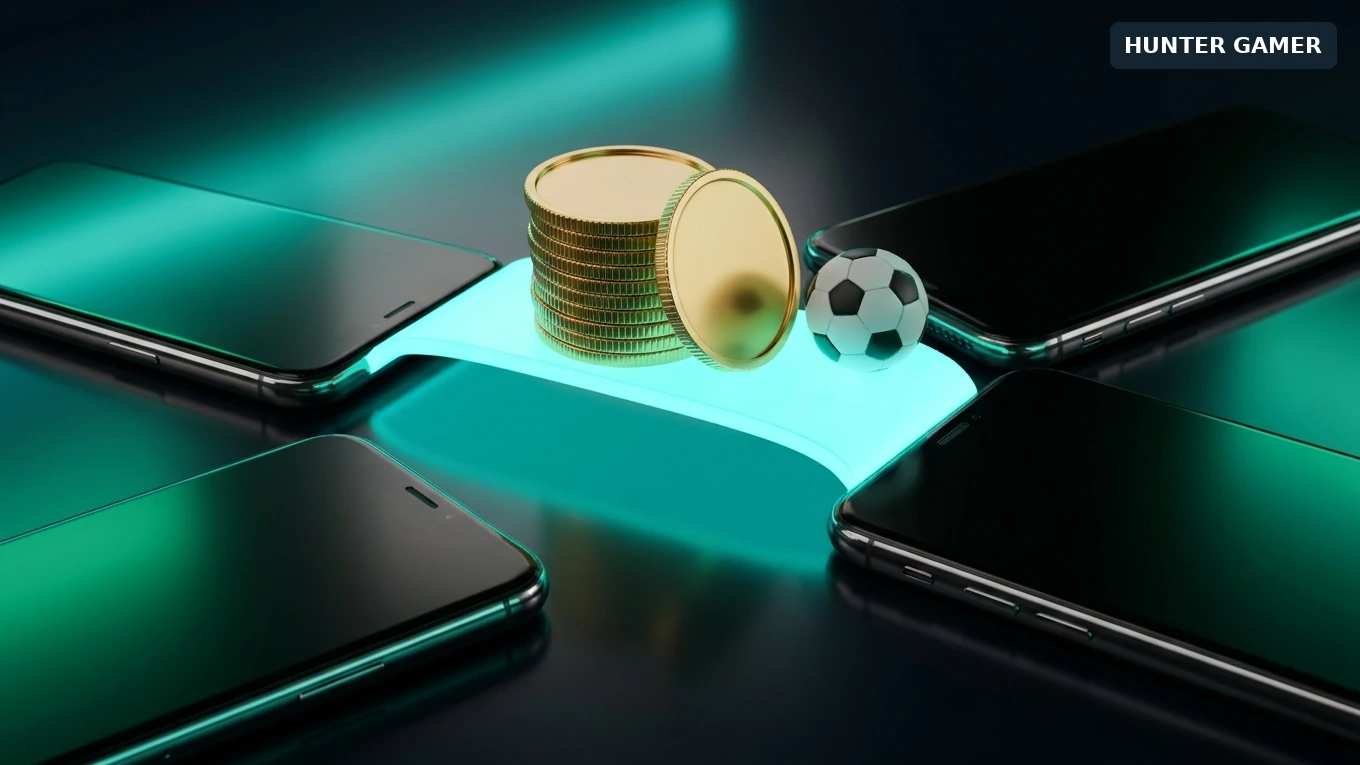
Golden coins and a small soccer ball on a glowing light bridge between two smartphones.
AI-generated symbolic illustration of checking coin balances across devices, not a game screen or actual eFootball Coins.

Before moving, note your balance on the old phone and read the official coin-transfer FAQ. Look for the question “When I transferred data to another OS, the number of eFootball™ Coins changed. Why did that happen?” It addresses a different issue from choosing the login that restores your team.

If the balance looks different, first confirm your User ID and whether you changed operating systems. Keep a record of the old and new balances for any support enquiry. Do not immediately buy replacement Coins or erase the old installation while you are still working out what happened. This guide does not guarantee the availability of a particular balance on another device.

This is a transfer guide, not a current price comparison. For the separate purchasing question, see our eFootball Coins buying guide for Bangladesh; check the dates and current checkout terms before relying on any listed offer.

If the old phone is gone or the transfer fails

If you already linked the game, use that linked transfer route. If you cannot access the KONAMI ID, KONAMI’s restoration page directs you to its KONAMI ID help or contact form.

If you never completed Link Data and the app or device is gone, the FAQ’s lost-device answer directs you to General Contact → Enquiry Form → I can’t restore my account using a data transfer from the title menu. Supply the information requested through that official form. This is a support enquiry, not a guarantee that the account can be recovered.

KONAMI also notes a monthly limit on transfer attempts. Its cited answer does not give a number, so this guide will not invent one. If you reach a limit or see an unfamiliar error, record its exact wording and use support instead of cycling through devices.

Frequently Asked Questions

Can I transfer eFootball from Android to iPhone?

Yes. Link the mobile game data to a KONAMI ID and use that ID through Data Transfer on the new phone’s title screen. KONAMI’s FAQ describes that route for both directions. Its restoration guidance separately warns that Google Play is not the route for changing operating systems.

What should I check if my coin balance looks different?

Check that you restored the intended account, note whether you switched between Android and iOS, and read KONAMI’s answer about Coins after an OS transfer. Keep the old balance record and use official support if your situation is unclear. Do not treat a different balance alone as a reason to make another purchase.

Can I restore the account after deleting the app?

KONAMI’s restoration guidance says a previously linked account can be restored through the appropriate transfer route. Without that setup, use its account-restoration enquiry process; do not assume reinstalling alone will restore the old game.

Where do I link my game to a KONAMI ID?

On the old phone, open Extras → Support → Link Data, then choose the KONAMI ID option. This route appears in both KONAMI’s account-linking guide and its transfer FAQ. On the new phone, use Data Transfer from the title screen instead.
Tags: Gamer
Previous Post

How to Bind a Free Fire Guest Account Safely in 2026

Related Posts

A smartphone wrapped in a glowing orange energy dome with a chain of light linking it to a floating shield emblem.
Mobile Games

How to Bind a Free Fire Guest Account Safely in 2026

November 15, 2026
A golden footballer hologram rising from a smartphone screen toward a floating golden shield with a check mark.
Mobile Games

PUBG Mobile Account Recovery 2026: Choose the Right Option

November 15, 2026
Blue and amber blocks labeled Version 4.7, November 12, and Flash, November 13, 2026.
Mobile Games

PUBG Mobile 4.7 and Flash Release Dates: November 2026

November 15, 2026

Categories

  • Mobile Games
  • News
  • PC Games
  • PUBG
  • Reviews

Topics

2024 PUBG tricks Best Fortnite Xp Maps Best Games Cyberpunk Days Gone Fortnite Fortnite Xp Maps Gamer Lag fix PMPL 2023 South Asia PUBG PUBG game performance PUBG mobile lag fix PUBG Mobile Redeem Codes 2023 Xp Maps
  • Top-Up Shop
  • About Us
  • Contact
  • Privacy Policy and Data Protection
  • Terms and Conditions of Website Use
  • Refund and Returns Policy for Digital Products
Call us: +880 1711 189127

Copyright © 2020 - 2026 Hunter Gamer · All Rights Reserved.

Welcome Back!

Login to your account below

Forgotten Password?

Retrieve your password

Please enter your username or email address to reset your password.

Log In
No Result
View All Result
  • Shop
  • Home
  • Mobile Games
    • PUBG
  • PC Games
  • Reviews
  • News
  • Insights
  • Streamers
    • Australia
    • Bangladesh
    • Canada
    • Hong Kong
    • India
    • Indonesia
    • Malaysia
    • Moroccan
    • Nepal
    • Singapore
    • Spain
    • Taiwan
    • Thailand
    • Türkiye
    • United Kingdom
    • United States
    • Vietnam
  • Online Games
    • Dex Ball

Copyright © 2020 - 2026 Hunter Gamer · All Rights Reserved.