• Latest
  • Trending
  • All
Illustrated setup path from intended use through computer and network checks to a streaming preview

OBS Auto-Configuration Wizard: Setup Guide for Gamers in Bangladesh

November 16, 2026
Symbolic illustration of floating glass control panels with gold and orange buttons above a landscape phone.

Free Fire HUD Share Code: Import and Setup Guide (2026)

November 18, 2026
Illustration of a tilted phone above training targets with an amber rotation arrow.

PUBG Mobile Gyroscope Not Working? 2026 Checklist

November 17, 2026
A curved gaming monitor showing a colorful game scene with a glowing timeline bar below it, one segment highlighted in gold.

Steam Game Recording Guide 2026: Save and Export Clips

November 17, 2026
Two smartphones moving a glowing stream with a soccer ball from the old phone to the new phone under stadium lights.

eFootball Mobile Data Transfer: New Phone Guide (2026)

November 16, 2026
A smartphone wrapped in a glowing orange energy dome with a chain of light linking it to a floating shield emblem.

How to Bind a Free Fire Guest Account Safely in 2026

November 16, 2026
A golden footballer hologram rising from a smartphone screen toward a floating golden shield with a check mark.

PUBG Mobile Account Recovery 2026: Choose the Right Option

November 16, 2026
valorant settings guide hero

VALORANT Settings Guide: Seven Options Worth Checking

November 16, 2026
Five glowing crystal obelisks in different colors on a dark arena floor.

VALORANT Agent Profiles: All Abilities, Roles and How to Play Them

November 16, 2026
Blue and amber blocks labeled Version 4.7, November 12, and Flash, November 13, 2026.

PUBG Mobile 4.7 and Flash Release Dates: November 2026

November 16, 2026
Editorial illustration of a stylized game profile screen with an ornamental nickname banner made of star and bracket symbols above a stat panel.

PUBG Mobile Name Symbols 2026: What Works and How to Change Your Name

November 16, 2026
Editorial illustration of a rugged metal supply capsule descending by parachute onto a rocky island as a storm and distant lightning gather over the sea.

Free Fire Storm Arena 2026: Free Rewards and What to Check

November 16, 2026
OBS virtual camera settings for gaming calls guide for Bangladesh gamers, updated November 2026

How to Set Up OBS Virtual Camera for Gaming Calls

November 16, 2026
  • About Hunter Gamer
  • Advertising & Sponsorship Opportunities
  • Contact Us for Gaming News & Support
Wednesday, November 18, 2026
  • Login
Hunter Gamer
  • Shop
  • Home
  • Mobile Games
    • PUBG
  • PC Games
  • Reviews
  • News
  • Insights
  • Streamers
    • Australia
    • Bangladesh
    • Canada
    • Hong Kong
    • India
    • Indonesia
    • Malaysia
    • Moroccan
    • Nepal
    • Singapore
    • Spain
    • Taiwan
    • Thailand
    • Türkiye
    • United Kingdom
    • United States
    • Vietnam
  • Online Games
    • Dex Ball

No products in the cart.

No Result
View All Result
Hunter Gamer
  • Shop
  • Home
  • Mobile Games
    • PUBG
  • PC Games
  • Reviews
  • News
  • Insights
  • Streamers
    • Australia
    • Bangladesh
    • Canada
    • Hong Kong
    • India
    • Indonesia
    • Malaysia
    • Moroccan
    • Nepal
    • Singapore
    • Spain
    • Taiwan
    • Thailand
    • Türkiye
    • United Kingdom
    • United States
    • Vietnam
  • Online Games
    • Dex Ball
No Result
View All Result
Hunter Gamer
No Result
View All Result

OBS Auto-Configuration Wizard: Setup Guide for Gamers in Bangladesh

November 16, 2026
in News
Reading Time: 4 mins read
0 0
Home News
12
VIEWS
Share on FacebookShare on Twitter

OBS Auto-Configuration Wizard: Setup Guide for Gamers in Bangladesh, 2026

To open the OBS Auto-Configuration Wizard, go to Tools → Auto-Configuration Wizard. The wizard also appears when you run OBS Studio for the first time. If you are searching for “obs auto configuration wizard Bangladesh,” this is the starting point for the setup process.

The wizard helps configure OBS for recording or streaming by considering what you want to do, your computer’s hardware resources, and your network conditions when streaming. This guide covers that supported workflow, followed by OBS’s audio checks and recording or streaming test steps.

As of October 2026: the guidance here focuses on opening the wizard and checking its results. It does not provide a fixed bitrate, resolution, frame rate, or other numerical settings preset.

Open the Wizard or Run It Again

On your initial launch of OBS Studio, the Auto-Configuration Wizard appears as part of getting started. Use it as the starting point for configuring your recording or streaming workflow rather than looking for a numerical preset in this article.
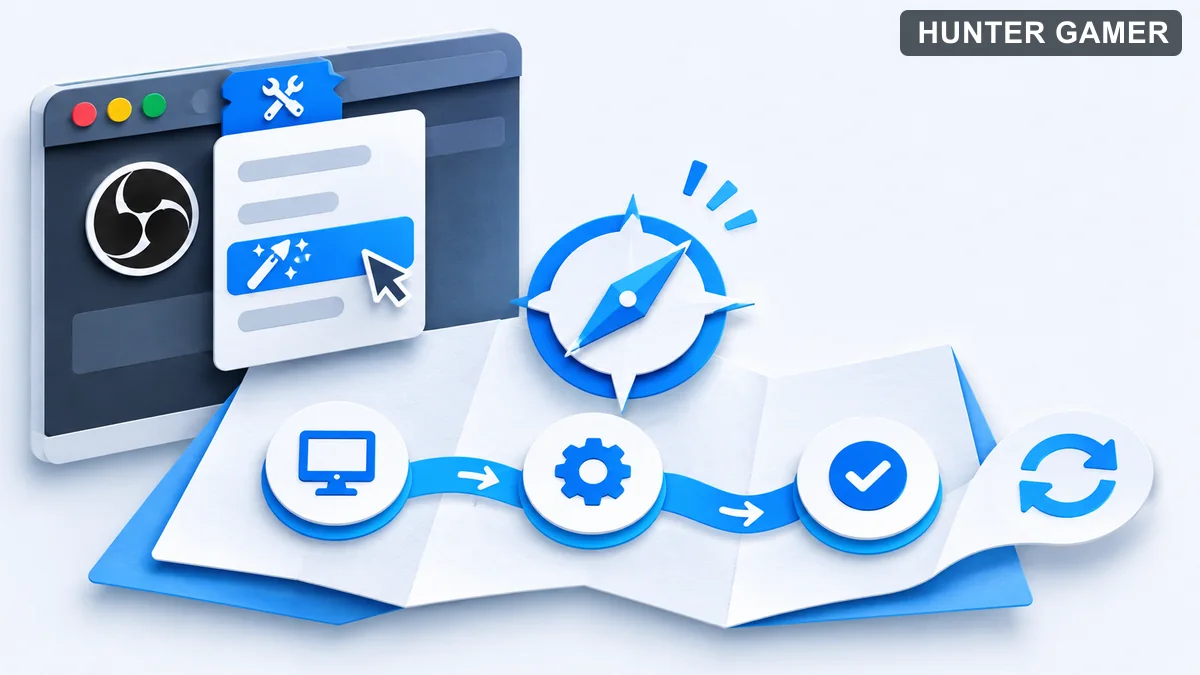
Illustrated tools menu and wizard path for opening or rerunning setup

If you have already opened OBS before, you can access the wizard again from the Tools menu. Select Auto-Configuration Wizard to rerun it. You do not need to rely on catching the initial startup prompt: the Tools menu is the documented route for returning to the wizard.

  • For an initial OBS launch, look for the wizard that appears automatically.
  • For a later setup pass, open Tools → Auto-Configuration Wizard.
  • Keep your intended recording or streaming use in mind, because the wizard considers what you want to do in OBS.

Understand What the Wizard Considers

The wizard’s recommendations take your intended use and your computer’s hardware resources into account. For streaming, it also considers network conditions. Those are the factors confirmed by the OBS quick-start guidance.

OBS describes the wizard as a way to optimise the application for needs such as streaming fast-paced gameplay or recording high-fidelity video. The useful distinction here is your own intended task: recording and streaming are both within the wizard’s documented purpose.

For this Bangladesh-focused guide, no country-wide connection speed or ideal bitrate is supplied. Follow the documented wizard workflow instead of treating this article as a local numerical preset. The supported explanation is that the wizard considers your hardware and, for streaming, your network conditions.

This guide also avoids describing individual wizard screens or naming optimisation options that official sources do not confirm. Keep the process focused on the verified entry point, the factors considered, and the checks that follow.

Check Desktop Audio and Your Microphone

As of October 2026, OBS’s documented default behaviour is to capture desktop audio and microphone audio. After working through configuration, check the volume meters in the Audio Mixer at the bottom of the main OBS window. OBS identifies these meters as the place to verify audio capture.
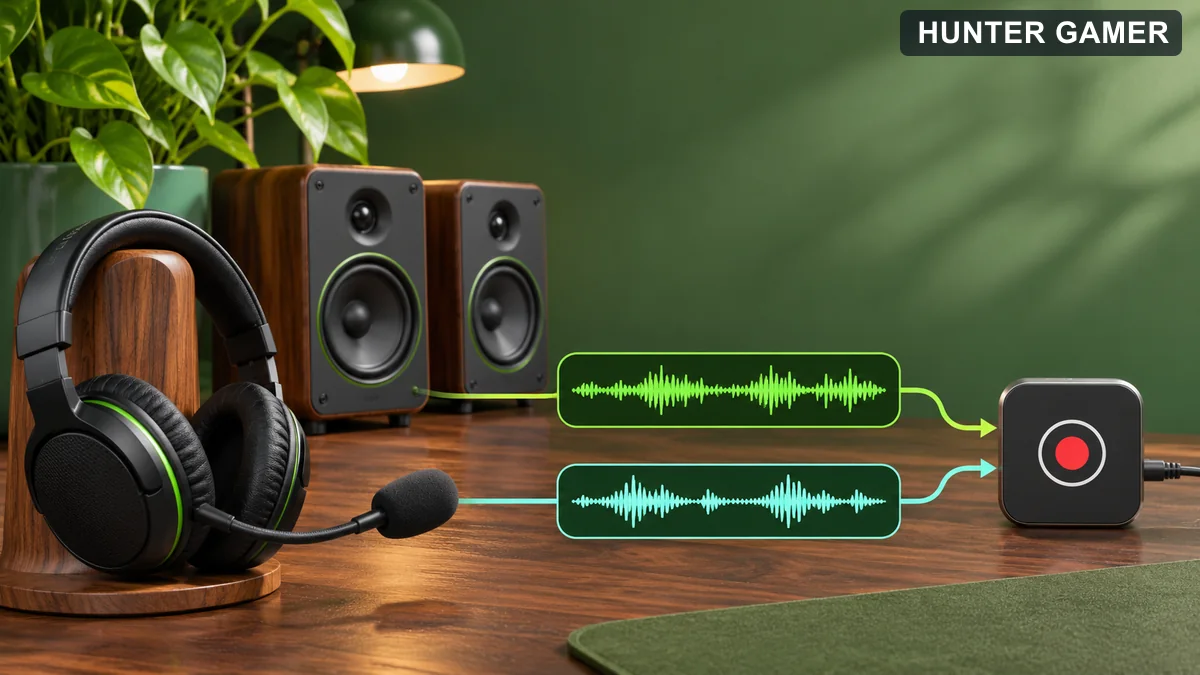
Separate headset microphone and desktop audio waveforms entering a recorder

If the meters are not moving, or you suspect OBS is capturing the wrong device, open Settings → Audio and select the devices manually. This is the documented follow-up for those audio concerns, rather than a reason to invent different wizard settings.

  • Look at the Audio Mixer’s volume meters to verify audio capture.
  • If the meters do not move, check the device selection in Settings → Audio.
  • Use the same Audio settings route if you suspect the wrong device is being captured.

Review Output and Test Your Setup

As of October 2026, OBS’s quick-start testing workflow is to double-check your settings in Settings → Output, then click Start Recording or Start Streaming. Make that review and test your next step before moving into your main gaming session.

Keep the final check straightforward: review Output, confirm audio through the Audio Mixer, and use the recording or streaming control for the workflow you intend to test. These actions are all part of the documented OBS setup guidance. No additional numerical settings are needed to explain this basic checking process.

For related reading on HunterGamer, browse the mobile games category or the informational top-up guides hub.

Frequently Asked Questions

Where can I rerun the OBS Auto-Configuration Wizard?

Open Tools → Auto-Configuration Wizard. The wizard appears on the initial OBS launch and is available again through this menu.

Does the wizard consider my internet connection?

It considers network conditions when you are streaming, alongside your computer’s hardware resources and what you want to do in OBS.

What should I check before testing?

Check audio capture using the Audio Mixer meters and review Settings → Output. OBS then directs you to click Start Recording or Start Streaming.
Published by

Hunter Gamer

Hunter Gamer has covered games, esports, and streamers for readers in Bangladesh and beyond since 2019. The site publishes gaming news and explainers, practical settings and troubleshooting guides for mobile and PC players, Bangladesh buying information for gaming hardware and digital products, and profiles of creators alongside their official channels.

Articles are built on official game, platform, and product information where it is available, and sources are linked when a claim needs attribution. Because prices, release dates, and game settings change, each article carries a review date and readers are asked to check the linked source before buying anything or changing an account setting. Where something cannot be verified, the article says so rather than guessing. Articles are revised when an error is found or when a change makes an older guide misleading — corrections and news tips are welcome through the contact page.

About Hunter GamerSpotted an error? Tell us

Previous Post

OBS Green Screen Setup: Remove Your Webcam Background for Gaming Streams

Next Post

OBS Dropped Frames (Network): Troubleshooting Gaming Streams in Bangladesh

Related Posts

Blue and amber blocks labeled Version 4.7, November 12, and Flash, November 13, 2026.
Mobile Games

PUBG Mobile 4.7 and Flash Release Dates: November 2026

November 16, 2026
Editorial illustration of a rugged metal supply capsule descending by parachute onto a rocky island as a storm and distant lightning gather over the sea.
News

Free Fire Storm Arena 2026: Free Rewards and What to Check

November 16, 2026
OBS virtual camera settings for gaming calls guide for Bangladesh gamers, updated November 2026
News

How to Set Up OBS Virtual Camera for Gaming Calls

November 16, 2026
Next Post
Streaming connection from a home router to a server with missing video frames

OBS Dropped Frames (Network): Troubleshooting Gaming Streams in Bangladesh

Slow mode, blocked-word filter and human moderation illustrated as a chat flow

YouTube Gaming Live Chat Moderation: Slow Mode, Blocked Words and Moderators

Microphone shielded from PC fan noise by a soft acoustic boundary

OBS Microphone Noise Suppression: Reduce Fan Noise in Gaming Streams

Categories

  • Mobile Games
  • News
  • PC Games
  • PUBG
  • Reviews

Topics

2024 PUBG tricks Best Fortnite Xp Maps Best Games Cyberpunk Days Gone Fortnite Fortnite Xp Maps Gamer Lag fix PMPL 2023 South Asia PUBG PUBG game performance PUBG mobile lag fix PUBG Mobile Redeem Codes 2023 Xp Maps
  • Top-Up Shop
  • About Us
  • Contact
  • Privacy Policy and Data Protection
  • Terms and Conditions of Website Use
  • Refund and Returns Policy for Digital Products
Call us: +880 1711 189127

Copyright © 2020 - 2026 Hunter Gamer · All Rights Reserved.

Welcome Back!

Login to your account below

Forgotten Password?

Retrieve your password

Please enter your username or email address to reset your password.

Log In
No Result
View All Result
  • Shop
  • Home
  • Mobile Games
    • PUBG
  • PC Games
  • Reviews
  • News
  • Insights
  • Streamers
    • Australia
    • Bangladesh
    • Canada
    • Hong Kong
    • India
    • Indonesia
    • Malaysia
    • Moroccan
    • Nepal
    • Singapore
    • Spain
    • Taiwan
    • Thailand
    • Türkiye
    • United Kingdom
    • United States
    • Vietnam
  • Online Games
    • Dex Ball

Copyright © 2020 - 2026 Hunter Gamer · All Rights Reserved.